
Reference
Keys
This page lists the keys of the TUI, by task. For the commands that you type after :, see : commands.
Press the keys in normal mode, unless a section names another state. Press ? to see the keys in Tiza. In the help, press / and type a word to filter it.
For example, to put a box around three lines and go to the next step:
- Press
V, then pressjtwo times. - Press
b, type a label and pressEnter. - Press
n.
Move the cursor
| Key | What it does |
|---|---|
j or ↓ | Moves the cursor one line down. |
k or ↑ | Moves the cursor one line up. |
h or ← | Moves the cursor one column left. |
l or → | Moves the cursor one column right. |
w | Moves the cursor to the start of the next word. |
b | Moves the cursor to the start of the previous word. |
e | Moves the cursor to the end of the word. |
0 | Moves the cursor to the first character of the line that is not a space. |
$ | Moves the cursor to the last character of the line. |
g or Home | Moves the cursor to the first line. |
G or End | Moves the cursor to the last line. |
J | Moves the cursor down by half the height of the terminal. |
K | Moves the cursor up by half the height of the terminal. |
w,bandestay on the line. They do not go to the next line or the previous line.- In presentation mode,
→and←change the step. See Present.
Go to a step
| Key | What it does |
|---|---|
n or PageDown | Goes to the next step. |
p or PageUp | Goes to the previous step. |
- Step 0 shows only the code.
pstops at step 0. - At the last step,
ndoes not move. With"loop": truein the document,ngoes back to step 0. See Loop. - A document without annotations and without moves has step 0 and step 1. Without
loop,nstops at step 1. - When a step types code, the next key finishes the typing. Tiza does not use that key for anything else.
Ctrl-Cis the exception: it does what it does in normal mode. See Ctrl-C. - In presentation mode, with the live pointer off, a key that only moves the view does not finish the typing. The view moves, and the typing continues. See Present.
- To go to a named step or to a step number, type
:goto ID. See Steps and files.
Select code
| Key | What it does |
|---|---|
v | Starts a text selection at the cursor. |
V | Starts a line selection at the cursor line. |
i | Selects the word under the cursor. |
v or V in a selection | Closes the selection. |
Esc in a selection | Closes the selection and cancels an arrow that you started. |
B in a selection | Goes to the previous word, as b does without a selection. In a selection, b adds a box. |
While a selection is open, these keys move the cursor and change the selection: j, k, ↓, ↑, l, →, ←, w, e, B, 0, $, Home, End and i.
- In a selection,
handbare annotation keys. See Annotate a selection. Use←to move left andBto go to the previous word. - In a selection,
0andHomego to the first character of the line that is not a space.$andEndgo to the last character of the line. They do not go to the first line and the last line. - In a selection,
ireplaces the selection with the word under the cursor. - A text selection that goes to another line becomes a line selection. The status bar still shows
SELECT. ?andLalso work in a selection. Other keys do nothing in a selection. Examples areg,p,u,qandP. The exceptions are the keys of Annotate a selection and Ctrl-C.
To select with the mouse, see Use the mouse.
Annotate a selection
Press one of these keys while a selection is open:
| Key | What it does |
|---|---|
h | Adds a highlight on the text, or sets the focus on the selected lines. |
m | Opens :mark for the text, where you type the kind and a label. |
n | Opens :note for the first line, where you type the text. |
C | Opens :callout for the lines, where you type the text. |
b | Opens :box for the lines, where you type a label. |
a | Starts an arrow on the text, or ends the arrow that you started. |
s | Adds a spotlight on the lines. |
f | Turns the live pointer on or off on the selected lines. |
: | Opens the command line and closes the selection. |
- To draw an arrow, select the first end and press
a. Then select the second end and pressaagain. aworks only on a text selection on one line. The arrow end is the first character of the selection.- On a line selection,
mopens:markwithout a text. Type the kind andL:TEXT. b,m,nandCadd nothing until you pressEnter.- The selection keys do different things on text and on lines. See Selection keys.
- A new annotation goes to the step on screen. At step 0, it goes to step 1. See Annotations.
Edit an annotation
| Key | What it does |
|---|---|
Tab | Selects the next annotation on the screen and moves the cursor to its first line. |
Shift-Tab | Selects the previous annotation on the screen and moves the cursor to its first line. |
Enter | Opens :label ID with the current label of the selected annotation. |
e | Opens :set ID for the selected annotation. |
c | Opens :color ID for the selected annotation. |
x | Deletes the selected annotation. |
+ | Moves the selected annotation to the next step. |
- | Moves the selected annotation to the previous step, but not before step 1. |
Esc | Clears the selection of the annotation. |
Tabgoes through the annotations that the screen draws, in the order of their first line on the screen. After the last one, it goes back to the first one.- When two annotations start on the same line,
Tabtakes them in the order of their ids as text. Thusa10comes beforea2. Tabdoes not select an annotation that the step does not draw. Examples are a spotlight of an earlier step and an annotation of another file. To select one of these, pressL, go to its row and pressEnter.Tabmoves the cursor to the line where the screen draws the annotation. A move of the step can put it on another line than the line that it was added on. A spotlight that names annotations takes the first line of these annotations. An arrow takes the line where it starts, also when it points up.Tabalso leaves out a note or a callout that the screen has no room for, and the annotations of the step while its moves type.- With an annotation selected,
Enter,e,c,x,+and-act on the annotation. The other keys do their usual action. - For a note,
Enteropens the text of the note. For a callout, it opens the title. - Tiza refuses
+on an annotation at step 999. It also refuses+and-when the lines of the annotation are not in the code of the new step. The status bar shows the error. - When
Tabfinds no annotation, it shows a message. See Messages. - In presentation mode,
Tabgoes to the next line under the cursor where an annotation that the view shows starts. After the last one in the view, it goes back to the first one.Shift-Tabgoes to the previous one, above the cursor. The annotations that start on one line are one stop, so eachTabmoves the cursor. The view does not move. - In presentation mode, an annotation starts on its first line in the view. Thus an annotation that starts above the view starts on the top line, and an arrow that points up starts on its top end. So the order can be different from normal mode.
- In presentation mode,
Tabgoes from the cursor line, also after you move the pointer withjork. With a selection of lines open, which presentation mode does not show,Tabcloses the selection first. With nothing in the view,Tabdoes nothing. - In presentation mode,
Tabselects nothing, because you cannot see a selection there. ThusEnter,e,c,x,+and-do not change an annotation. When presentation mode starts, it clears the annotation thatTabselected.
The status bar shows the selected annotation and its keys. A message hides them.
Present
| Key | What it does |
|---|---|
P | Starts or stops presentation mode. |
Esc | Stops presentation mode when the live pointer is off. |
→ | Goes to the next step. |
← | Goes to the previous step. |
f | Turns the live pointer on or off. |
↓ ↑ j k | Moves the view one row down or up. |
J K | Moves the view half a screen down or up. |
g G Home End | Goes to the start or the end of the code. |
Tab Shift-Tab | Goes to the next or the previous line where an annotation in the view starts. Nothing is selected. |
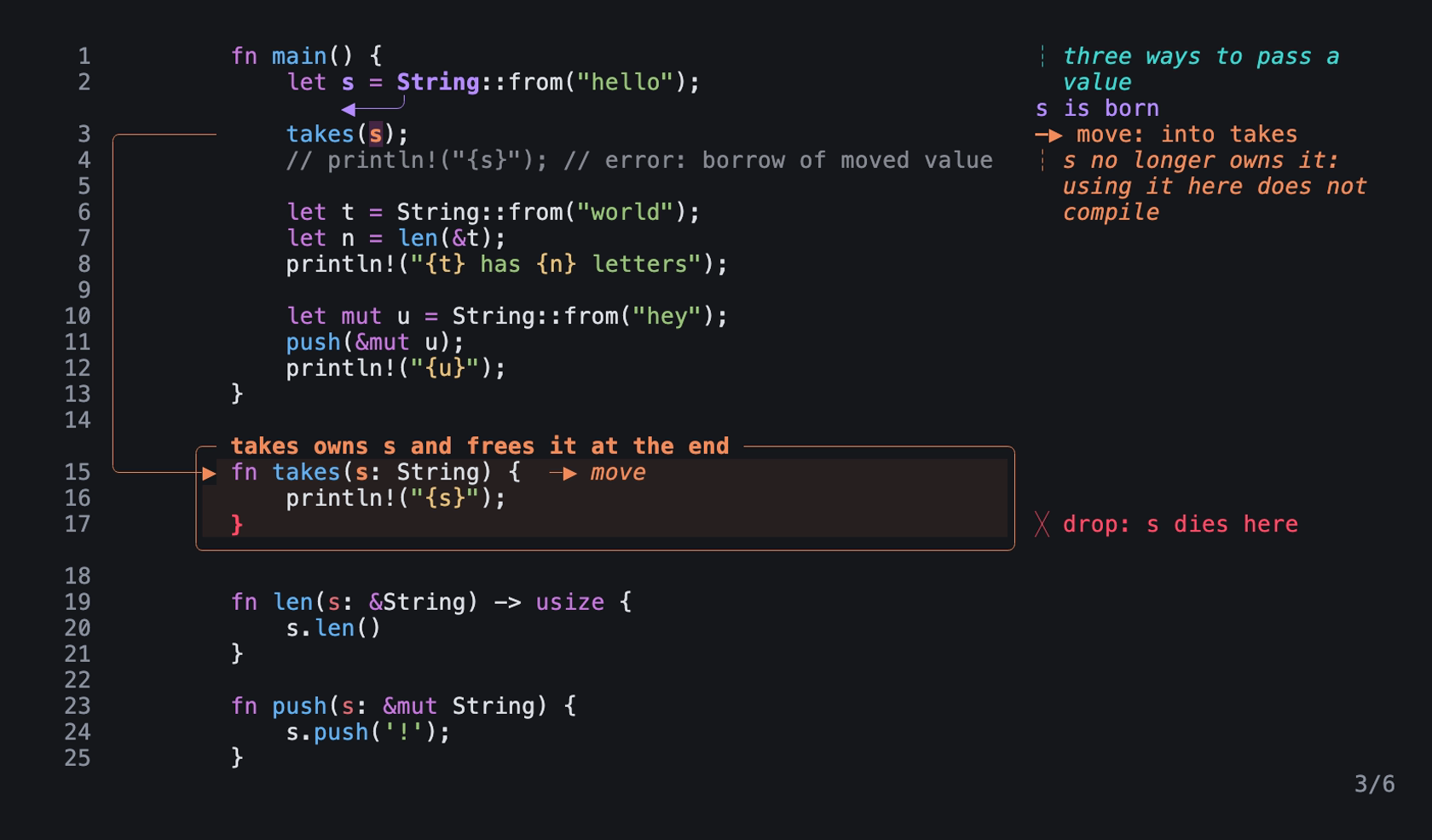
Step 3 of examples/ownership.rs.tiza in presentation mode: an image of the TUI in a real terminal of 100 columns and 30 rows, with the Menlo font.
- Presentation mode hides the interface. It uses the take. By default, normal mode sizes the arrow lanes, the box band and the code column for the step on screen, so a label can be in a different place from presentation mode.
:layout stableshows the take in normal mode. See:layout. - The last row shows the step counter at the right, for example
3/7, in the muted color. The counter shows when the document has more than one step, at step 0, and on the empty step after the last one. There it gives the same count as the status bar, for example8/8. When agent changes wait, the last row also shows⏸ N to review · :reviewat the left. - While the step counter or
⏸ N to review · :reviewshows, the last row has no code, so the code has one row less than the terminal. With a padding at the bottom, that row is free already, and the code keeps its rows. - In presentation mode, the keys of the view move the view, as in a web browser. The hidden cursor stays in the view, so
fpoints at a line that you see. A trackpad and a mouse wheel also move the view. With mouse capture, each notch moves it three rows. Without mouse capture, the terminal sends them as↑and↓. - With the live pointer on, the keys of the view move the pointer, as in normal mode. The view follows the pointer. When the chip
⏸ N to reviewcomes in on the last row and the line of the pointer is on that row, the view moves up one row, so that the line of the pointer stays in view. Tabgoes only through the annotations that the view shows, and the view does not move. With the live pointer on, the pointer goes withTab. See Edit an annotation.- The view stays on the same code when you go to another step, when an agent changes an annotation and when the terminal changes size. At a step change, these things move it: a
scroll, acursoror acode.linkmove of the step, the return to the top at a step that noscrollmove reaches (see Scroll), what comes in at the step, and code that is not on screen at the new step (another file, or lines out of the window of acode.link). When an agent orEnterin the list moves the cursor to another line, the view follows the cursor. - When you go to a step, its new annotations and the lines that its moves write come into the view, and the view moves as little as possible. When they do not fit, the view shows their start. The hidden cursor goes to the first of these lines, so
fpoints at it. This also occurs with:goto, with:step, with the auto-advance, and when Tiza opens at a step in presentation mode. It does not occur when you go back one step (also with:gotoor:step), when you go back to step 0, or when you start presentation mode withP. When you go back to a step that noscrollmove reaches, the view goes to the top (see Scroll). Until a key moves the view or the cursor, what came in stays in view when the terminal changes size. - A
scroll, acursoror acode.linkmove of the step places the view, and then nothing else comes into the view. Ascrollmove that finds no target does not place the view. Acursoror acode.linkof an earlier step does not move the view, unless the code of the view is not on screen at the new step. Then the view shows the code as that move puts it. - The other keys of normal mode also work in presentation mode, except the keys that edit. See the items below.
- Press
:to type a command. The command line shows on the last row. The result of the command stays there for 2 seconds. - Only the result of a
:command shows. When Tiza opens in presentation mode and the document has entries that this version does not know, the message at start, with their count, also shows there for 2 seconds. The messages of the keys, for example afterf, do not show in presentation mode, also in the 2 seconds after the result of a command. The next key hides that result. With mouse capture, a notch of the wheel also hides it. - In presentation mode,
u,UandCtrl-Rdo nothing, because you present and do not edit. In the list (L),x,u,UandCtrl-Rdo nothing too. To undo or redo while you present, type:undoor:redo: the last row shows the result. Ctrl-Cquits in presentation mode when no item of the Ctrl-C list is open.- In presentation mode, a click or a drag does nothing. See Presentation mode.
- While an enter effect plays, the keys that only move the view do not end it. See Enter effects.
The live pointer
The live pointer works like a laser pointer. It shows one line or a group of lines, and the rest of the code dims.
- Move the cursor to a line, or select lines with
V. - Press
f. - Move the cursor. The pointer follows it.
- Press
fto turn it off.
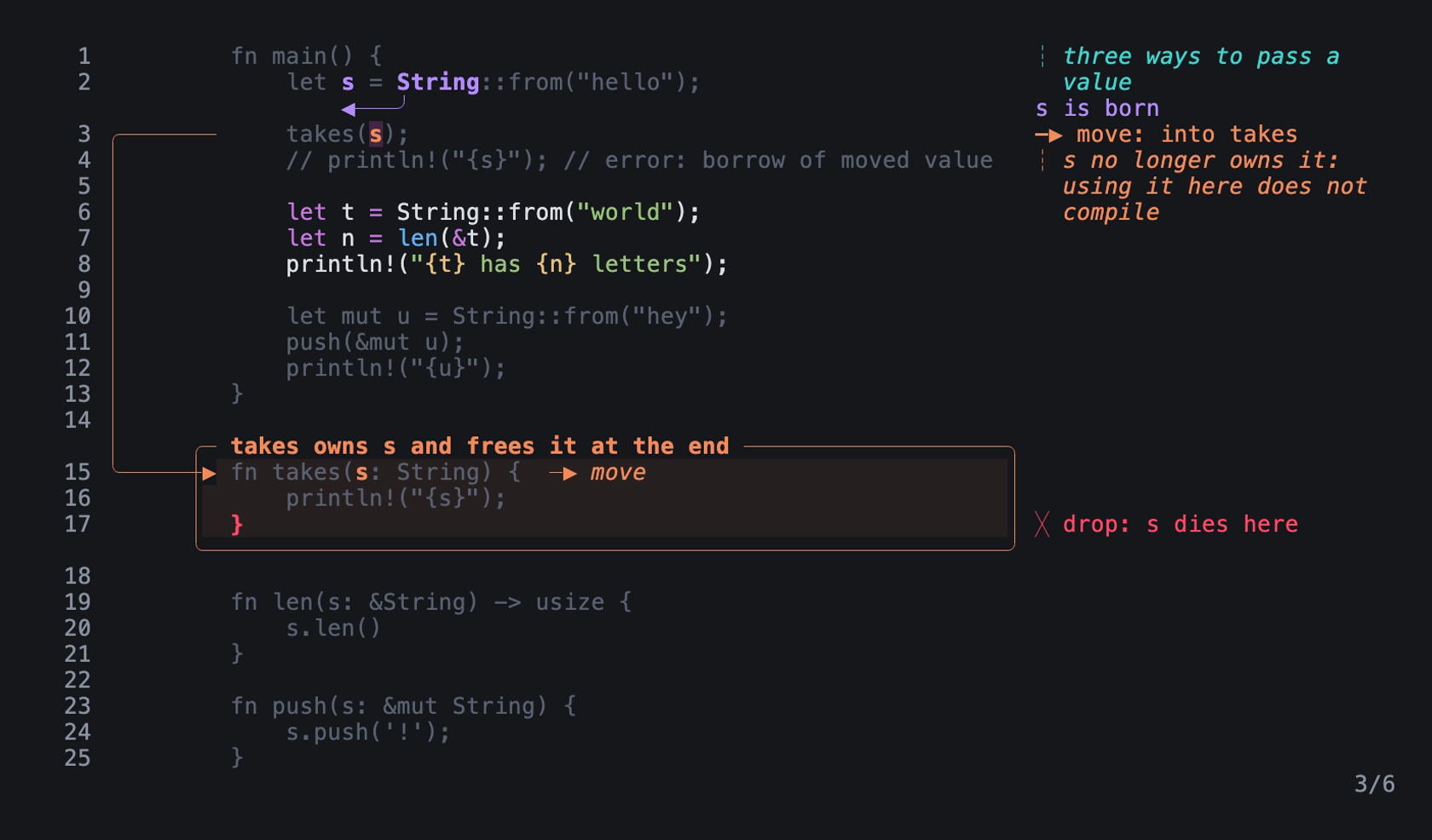
The live pointer on lines 6 to 8, at step 3 of examples/ownership.rs.tiza in presentation mode: an image of the TUI in a real terminal of 100 columns and 30 rows, with the Menlo font.
- With a spotlight, the annotations that touch the lines of the pointer also keep their colors. A box or an arrow that goes through a line of the pointer keeps its color too.
Escalso turns off the pointer when no selection, panel or command line is open. In a selection,Esccloses only the selection, and the pointer stays on the cursor line.- The pointer stays on its line when you change the step. When the pointer stays, a
cursoror acode.linkof the step does not move it, and the cursor stays on the pointer. This also occurs with a goto to the step on screen. - When a step moves the view and the new view does not show the lines of the pointer, the pointer turns off. A camera move of the step and the return to the top move the view. In presentation mode, what comes in at the step also moves the view.
- When a move removes the line of the pointer, the pointer turns off. It also turns off when a move fails at a change of step.
- When the view of a
scrollmove or of what came in at the step keeps its place and the terminal gets smaller, the pointer turns off if the view does not show its lines. - After a paste or a reload, the pointer goes to the cursor line.
- The command line hides the pointer while it is open.
- Tiza never saves the pointer. An export never shows it.
udoes not undo it. - An agent can point at lines with the MCP tool
point_at. This closes your selection and moves the cursor.
Other keys
| Key | What it does |
|---|---|
u | Undoes the last change. |
U or Ctrl-R | Redoes the change that you undid. |
t | Changes between the dark and the light theme. |
L | Shows the annotation list. |
? | Shows the help. |
: | Opens the command line. |
q | Quits, as :q does. |
Ctrl-C | Closes what is open, or quits. |
Esc | Turns off or clears one state, in the order of the list under this table. |
| A paste | Replaces the code with the text that you paste. |
In normal mode, Esc does the first of these that applies:
- It turns off the live pointer.
- It stops presentation mode.
- It clears the selection of an annotation.
- It cancels an arrow that you started. The message is
arrow cancelled. - It clears the focus.
- After
uandU, the message names the change that Tiza undid or redid. When there is nothing to undo or redo, the message says so. - From the
terminaltheme,tgoes to the dark or the light theme that matches the terminal. tand the theme of the document are in Themes.- In normal mode,
Ctrlwith a letter does nothing, exceptCtrl-CandCtrl-R. q,:qandCtrl-Csave no more than the current mode saves. See Quitting.
Ctrl-C
Ctrl-C closes the first open item of this list:
- A panel: the help, the annotation list or the agent review.
- The command line. Tiza does not run the command.
- A selection. Tiza also cancels an arrow that you started.
- An arrow that you started, when no selection is open.
When nothing is open, Ctrl-C quits. See Quitting.
Warning: When nothing is open,
Ctrl-Cquits. First it closes a panel, the command line, a selection or an arrow, in the order of the list above. This rule also applies in presentation mode, with the live pointer on, with an annotation selected and while a step types code.Ctrl-Cdoes not turn off these states. To turn them off, useEsc.
When Ctrl-C quits, these rules apply:
- Tiza never saves the live pointer or presentation mode.
- With autosave on and no failed save, each change is on disk already.
- After a failed autosave, Tiza tries the save one more time. When that save fails, Tiza prints
tiza: could not save FILE: ERRORon stderr. Then it prints the list of the changes that it did not save. tand a change of step do not save. The next change saves them. When you quit before that change, Tiza loses them and prints nothing.- With autosave off or in no-save mode, Tiza does not save your changes. It prints the list of the changes that it did not save on stderr.
The list looks like this: tiza: quit without saving main.rs.tiza: 1 change not saved (note a1).
A paste
Outside the command line, a paste replaces the code with the pasted text. Each annotation stays on its text. Tiza drops an annotation when its text is gone. u brings it back. See What happens to annotations.
uundoes the paste.- After a paste, the cursor goes to the first line.
- A paste of empty text changes nothing and shows a message.
- Tiza refuses a paste while a move is applied. See A paste while a move is applied.
- On the command line, a paste adds the first line of the pasted text. A line ends at a line feed or at a carriage return.
- In a selection, a paste also replaces the code.
- While a panel is open, also while you type its filter, a paste changes nothing and shows a message. In presentation mode, a paste changes nothing too.
The command line
| Key | What it does |
|---|---|
Enter | Runs the command. |
Esc | Closes the command line and does not run the command. |
Backspace | Deletes the last character, or closes the command line when it is empty. |
Ctrl-U | Deletes all the text of the command line. |
Tab | Completes the name of the command or the argument. |
↑ | Shows the previous command of the history. |
↓ | Shows the next command of the history. |
Enteron an empty command line closes it.- The command line has no cursor.
←and→do nothing. To change a command, delete it withBackspaceorCtrl-U. ↑stops at the oldest command.↓does nothing until you press↑.↓after the newest command clears the command line.- The history keeps the last 100 commands. Tiza does not add a command that is the same as the one before it.
sin a selection also adds its:spotcommand to the history.- When a selection opened the command line, these keys also close that selection:
Esc,Ctrl-C, andBackspaceorEnteron an empty command line.
Tab completes these words:
| You typed | Tab completes |
|---|---|
: | The name of a command. |
:mark | A kind or a style, as the first argument. |
:style | The name of a style. |
:del, :label, :color, :until and :spot | The id of an annotation. |
:step | The id of an annotation, as the first argument. |
:theme | dark or light. |
When more than one word matches, Tab completes the common start of the words. The status bar lists the words that match.
Panels
The help (?), the annotation list (L) and the agent review (:review) are panels. A panel opens over the code.
- A panel needs a terminal of 40 columns and 12 rows or more. In a smaller terminal, the panel does not open, and the status bar shows a message.
- An open panel closes when the terminal becomes smaller than that.
Help and list
| Key | In the help | In the list |
|---|---|---|
j or ↓ | Scrolls one line down. | Selects the next row. |
k or ↑ | Scrolls one line up. | Selects the previous row. |
Space or PageDown | Scrolls one page down. | Selects the row one page down. |
PageUp | Scrolls one page up. | Selects the row one page up. |
g or Home | Goes to the top. | Selects the first row. |
G or End | Goes to the end. | Selects the last row. |
Enter | Closes the help. | Closes the list and goes to the step of the row. |
x | Does nothing. | Deletes the annotation or the move of the row. |
u, U or Ctrl-R | Does nothing. | Undoes or redoes the last change. |
/ | Starts the filter. | Starts the filter. |
? | Closes the help. | Closes the list and opens the help. |
q or L | Closes the help. | Closes the list. |
Esc | Clears the filter, or closes the help. | Clears the filter, or closes the list. |
- In the list,
Enteron an annotation also selects it, also when the step does not draw it. The cursor goes to its line when the step draws it. In presentation mode,Enterdoes not select the annotation. Entergoes to the step of the row as:gotodoes. Then the view follows the cursor to the annotation, so ascrollmove of that step does not place the view.- In the list,
Enterwith no row only closes the list. - When the help closes, Tiza goes back to normal mode. It does not go back to the list.
- When a motion key selects a stale move, the status bar shows
#N is stale: REASON. x deletes it. The message does not show when the list opens or while you type a filter.
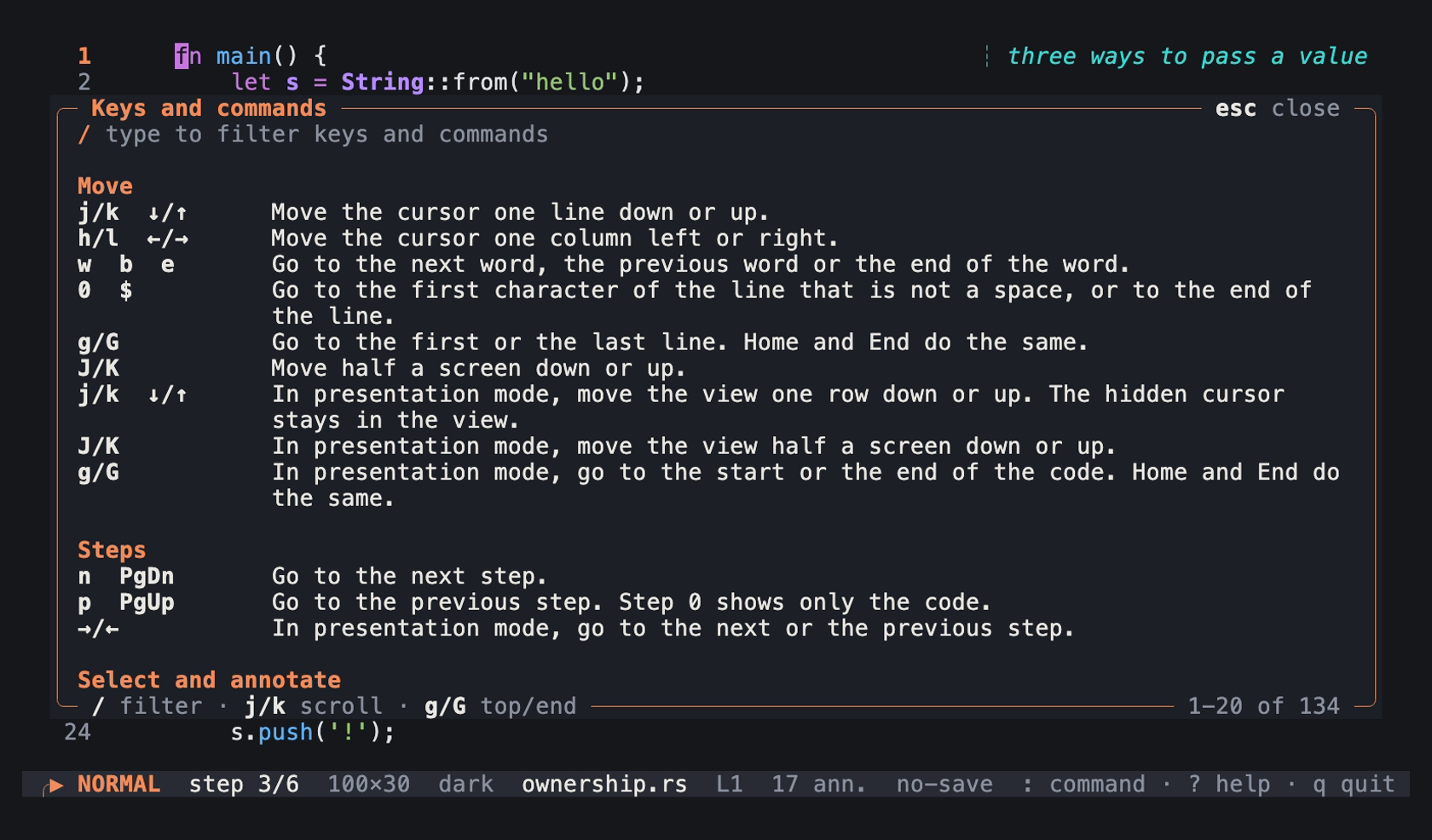
The help (?) at step 3 of examples/ownership.rs.tiza: an image of the TUI in a real terminal of 100 columns and 30 rows, with the Menlo font.
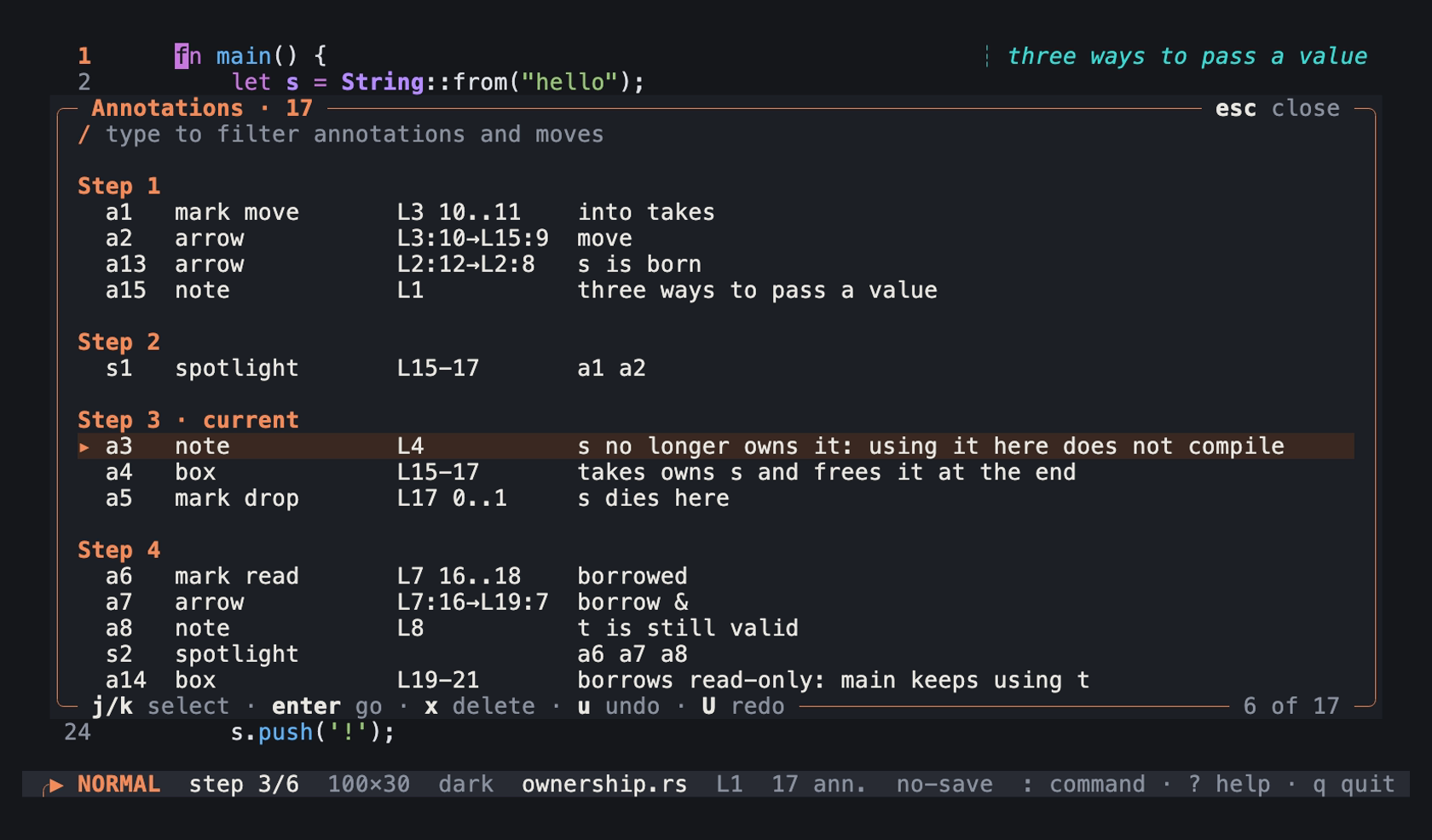
The list (L) at step 3 of examples/ownership.rs.tiza: an image of the TUI in a real terminal of 100 columns and 30 rows, with the Menlo font.
Agent review
| Key | What it does |
|---|---|
y or Enter | Accepts the selected change. |
n or x | Rejects the selected change. |
a | Accepts all the changes that the review shows. |
d | Rejects all the changes that the review shows. |
j, k, ↓ or ↑ | Selects the next or the previous change. |
g, Home, G or End | Selects the first or the last change. |
/ | Starts the filter. |
Esc | Clears the filter, or hides the review. |
q | Hides the review. |
: | Hides the review and opens the command line. |
- With a filter,
aandddecide only the changes that the filter shows. The other changes wait. - When the review shows no change,
Entercloses it.
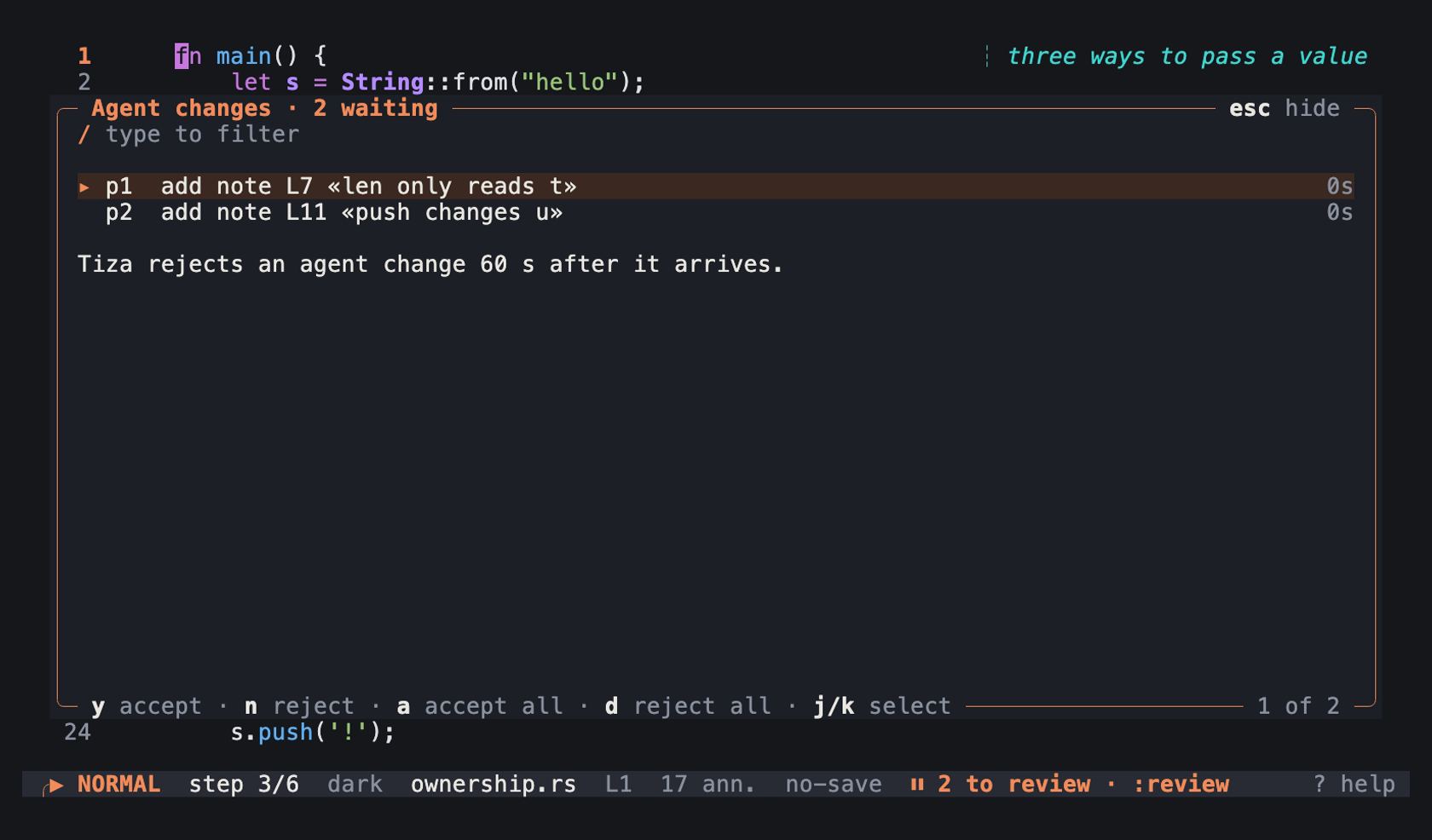
The review (:review) with two agent changes that wait, at step 3 of examples/ownership.rs.tiza: an image of the TUI in a real terminal of 100 columns and 30 rows, with the Menlo font.
See Supervise an agent.
Filter
While you type a filter, the keys do these actions:
| Key | What it does |
|---|---|
| A character, also a space | Adds the character to the filter. |
Backspace | Deletes the last character of the filter. |
Ctrl-U | Deletes all the filter. |
↓ or ↑ | Scrolls the help, or moves the selection of the list or the review. |
Enter | Keeps the filter and stops the typing. |
Esc | Clears the filter and stops the typing. |
- Other
Ctrlkeys do nothing in the filter.Ctrl-Ccloses the panel. - The filter of the help finds a key, a command, a description or the title of a section. Case does not matter.
Status bar
The left end of the status bar shows the mode:
| Status bar | State |
|---|---|
NORMAL | Normal mode. |
SELECT | A text selection is open. |
V-LINE | A line selection from V is open. |
ARROW | You started an arrow, and Tiza waits for its second end. |
POINTER | The live pointer is on. |
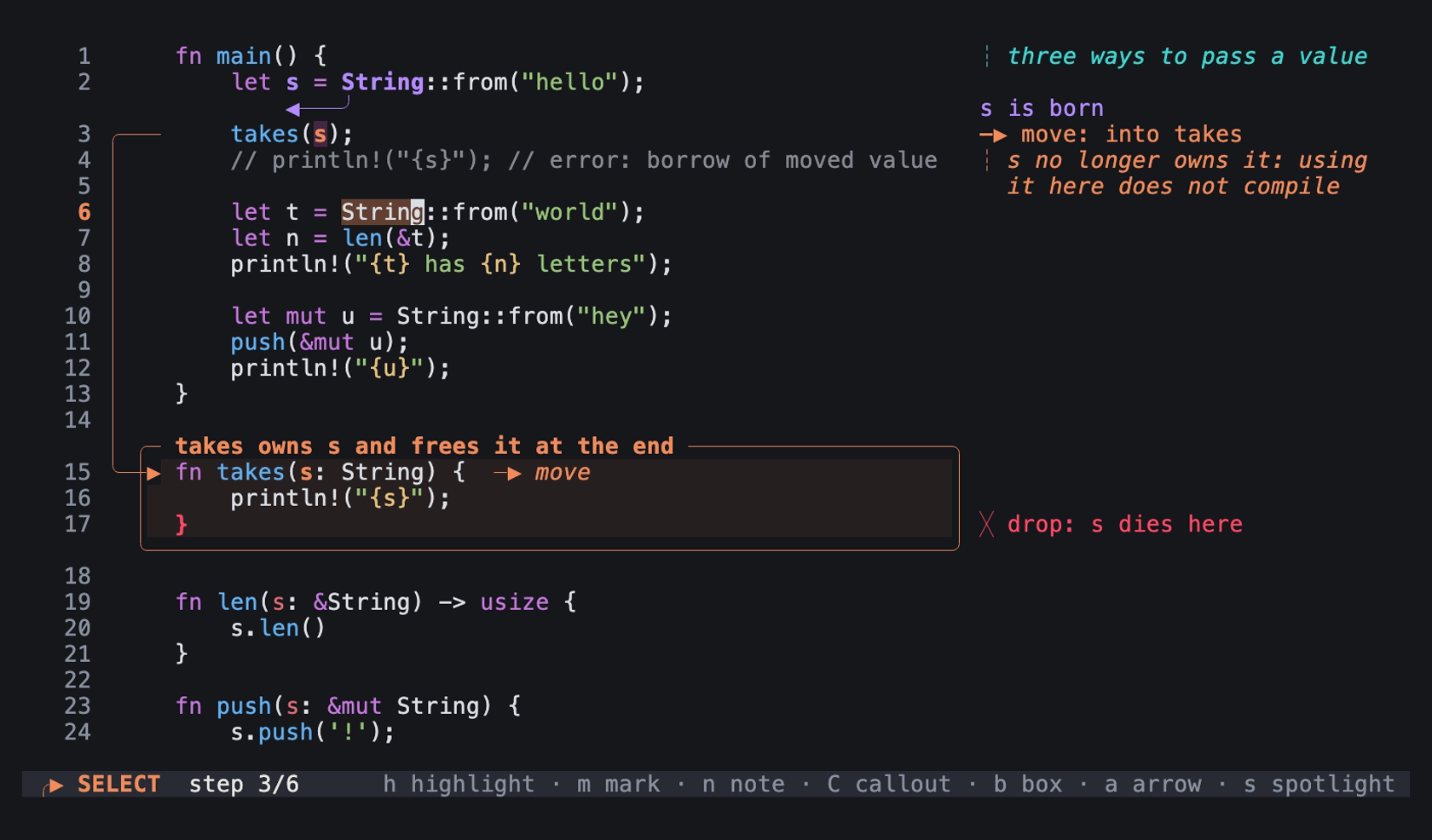
The status bar with a text selection open, at step 3 of examples/ownership.rs.tiza: an image of the TUI in a real terminal of 100 columns and 30 rows, with the Menlo font.
The rest of the status bar shows the first of these that applies:
- A message.
- The selected annotation and its keys.
- The keys of the selection:
h highlight · m mark · n note · C callout · b box · a arrow · s spotlight. v select · : command · ? help · L list · q quit.
- A narrow status bar shows fewer keys.
- With an annotation selected, a selection from
v,V,ior the mouse shows the keys of the annotation. To see the keys of the selection, clear the selection of the annotation first. - Presentation mode hides the status bar.
Messages
| Message | When |
|---|---|
pointer on (f or Esc turns it off; never saved nor exported) | f turned the live pointer on. |
pointer on (f turns it off; never saved nor exported) | f turned the live pointer on in a selection. In a selection, Esc closes only the selection. |
pointer off | f turned the live pointer off. |
ID deleted (u to undo) | x deleted an annotation. |
ID → step N | + or - moved an annotation. |
step 0 shows only the code: press n to see the annotations | Tab at step 0, when no annotation is at step 0. |
no annotations in this step | Tab found no annotation. |
no annotation on the screen at this step: L lists them all | Tab found annotations of this step or of earlier steps, but the screen draws none of them. |
undone: CHANGE | u undid a change. |
redone: CHANGE | U or Ctrl-R redid a change. |
nothing to undo | u found no change. |
nothing to redo | U or Ctrl-R found no change. |
N lines pasted (K annotations kept) | A paste replaced the code. |
N lines pasted; K annotations dropped (their text is gone; u undoes) | A paste removed the text of K annotations. |
nothing to paste: the clipboard text is empty | A paste had no text. |
paste ignored: close the PANEL with Esc, then paste again | A paste came while the help, the list or the review was open. PANEL is help, list or review. With a filter, the message says Esc twice, because the first Esc clears the filter. |
paste ignored in presentation mode: press P to leave it, then paste again | A paste came in presentation mode. |
the help needs 40×12 or more | ? found the terminal too small. |
the list needs 40×12 or more | L found the terminal too small. |
the agent changes need 40×12 or more | :review found the terminal too small. |
needs 40×12 | A panel found the terminal too small, and the terminal is narrower than 60 columns. |
#N is stale: REASON. x deletes it | The selected row of the list is a stale move. |
#N deleted (u to undo) | x deleted a move in the list. |
accepted N agent changes | a accepted the changes of the review. |
rejected N agent changes | d rejected the changes of the review. |
accepted pN: SUMMARY | y or Enter accepted a change. |
pN accepted but failed: SUMMARY | y or Enter accepted a change, and the change failed. |
rejected pN: SUMMARY | n or x rejected a change. |
- With one line or one annotation, the paste messages say
lineandannotation. With one change,acceptedandrejectedsayagent change. - The messages of
h,sandain a selection are in Messages. That table also hasarrow cancelled. - A message about a new annotation, or after
+or-, can end with a step hint. Examples are(step N, press n),(press n),(step N, :step N shows it)and(FILE, not shown at step N). See Messages of the annotation commands.
How it works
The help (?) gets its rows from one table in the code. A test compares that table with the keys that act in normal mode, in a selection, with an annotation selected and in presentation mode.