
Reference
Document format
This page describes the .tiza document: the JSON file that holds the code reference, the annotations, the moves and the named steps. Use it to read or write a document by hand.
The document and its code
A .tiza file is a JSON document. With autosave on, Tiza saves it next to the source file. For example, tiza src/main.rs saves to src/main.rs.tiza. See Saving.
The document holds its code in one of two forms:
- A code reference names the source file by path:
"code": {"file": "main.rs", "lines": "12-48"}. The path is absolute or relative to the.tizafile. Thus the document always shows the current code of the file. - Embedded code is a copy of the code inside the document, as an array of lines.
:embedmakes this copy. It also copies every file that acode.linkmove shows.
| Command | What it does |
|---|---|
:embed | Copies the code and every linked file into the document. |
:ref PATH[:A-B] | References a file again, at any step. |
:link | References the source file again. |
:link PATH[:A-B] at step 0 | Does the same as :ref PATH[:A-B]. |
:link PATH[:A-B] at step 1 or later | Adds a code.link move at the current step (see Several files). |
:ref, and :link when it references a file, refuse two cases:
- The file has other code, and a move is applied. Go back to step 0 first.
- A
code.linkmove shows the file already, because its annotations belong to that view.
Examples
Two examples show moves and views:
tiza examples/ownership-moves.rs.tizatypes a helper function. Later it replaces the function with a method call.tiza examples/stack-and-queue.tiza --no-saveshows a stack and a queue in two views. It changes from one view to the other and back. Each view has its own annotations.
Top-level fields
| Field | Type | Default | Meaning |
|---|---|---|---|
schema | integer | Required | The version of the format, 1. |
source | object | Required | The language and the first line of the code (see source). |
code | array or object | Required | The embedded code as an array of lines, or a file reference. |
follows | object | No default | A file reference to the file that follow mode reloads when the document has embedded code. |
annotations | array | [] | The list of annotations. |
step | integer | 1 | The step that the document opens at, from 0 to the last step. |
moves | array | [] | The list of moves. |
views | object | {} | The code of each linked file that :embed stores, as an array of lines, with the file of its code.link as the key. |
steps | array | [] | The list of named steps. |
loop | true or false | false | When true, the step after the last step is step 0. |
styles | object | {} | The styles of the document, a mark style for each name. |
title | string | No default | The title of the document. |
theme | "dark", "light" or "terminal" | No default | The theme of the document. |
theme_overrides | object | No default | Colors that apply over the [theme] table of the config file (see Theme overrides). |
padding | array of two integers | pad of the config file, else [0, 1] | The blank rows and columns around the code on the screen, as [vertical, horizontal]. |
margin | integer | No default | The maximum width of the right margin in columns. In the right margin, a note, a label or a legend that is longer than the margin continues on the free rows under its line. When no row is free, Tiza cuts it and ends it with …. |
numbers | true or false | numbers of the config file, else true | When false, Tiza does not show line numbers. |
viewsholds the full code of a linked file. The window stays in the move.- When a linked file is not in
views, Tiza reads it from disk. - A saved
stepafter the last step opens at the last step. terminaluses the colors of the terminal. It works only in the TUI. An export usesdarkorlight.- Tiza ignores a top-level key that it does not know, and does not save it.
source
| Field | Type | Default | Meaning |
|---|---|---|---|
language | string | "" | The language of the code, as an extension or a name, for example rs, ts or py. |
first_line | integer | 1 | The number of the first line shown, at most 1,000,000,000. |
path | string | No default | The path of the original file. |
With a code reference, Tiza sets first_line from lines. It also sets a missing path and an empty language from the file.
File reference
code and follows use this object.
| Field | Type | Default | Meaning |
|---|---|---|---|
file | string | Required | The file that holds the code, as a path that is absolute or relative to the .tiza file. |
lines | "12-48", "12..48" or "7" | The whole file | The lines of the file that the document shows. |
Annotations
A new annotation from the TUI appears at the current step. A socket or MCP request can name its own step. At step 0, a new annotation goes to step 1. This rule also applies to a socket or MCP request that names step 0.
| Field | Type | Default | Meaning |
|---|---|---|---|
id | string | Required | The short public id, unique in the document, for example a1. |
step | integer | 1 | The step at which the annotation appears, at most 999. |
type | string | Required | The annotation type, one of the seven values under this table. |
color | string | No default | A color name or #rrggbb. |
effect | "draw" or "fade" | No default | Experimental. The enter effect of the annotation. See Enter effects. |
file | string | The document's own file | The main file or a linked file that the annotation belongs to (see Several files). |
markers | object {start, end} | No default | The two texts that Tiza uses to find a range again after the code changes. |
The values of type are:
highlightmarkboxarrownotecalloutspotlight
from_line and to_line give the range of a box, a callout or a spotlight. markers only finds that range again. start is the first match in the code, and end is the first match at or after it.
Tiza ignores a key of an annotation that it does not know, and does not save it.
Annotation types
Each type adds its own fields.
highlight
| Field | Type | Default | Meaning |
|---|---|---|---|
span | object | Required | The part of the line to highlight, a span. |
label | string | No default | The text next to the code. |
emphasis | string | "fill" | How Tiza draws the span, one of the emphasis values. |
A highlight from :hl, as its frame shows it:
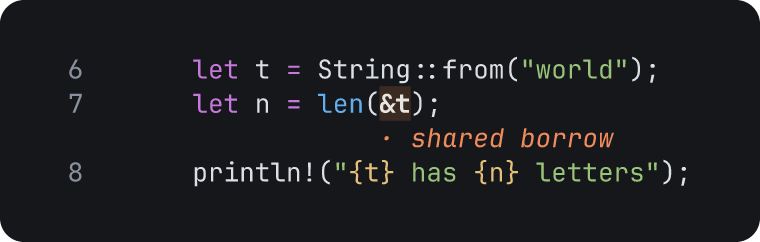
mark
| Field | Type | Default | Meaning |
|---|---|---|---|
kind | string | Required | The meaning of the mark, one of the kinds. |
span | object | Required | The part of the line to mark, a span. |
label | string | No default | The text after the legend. |
style | object | No default | A mark style for this mark only. |
emphasis | string | "fill" | How Tiza draws the span, one of the emphasis values. |
A mark from :mark, as its frame shows it:
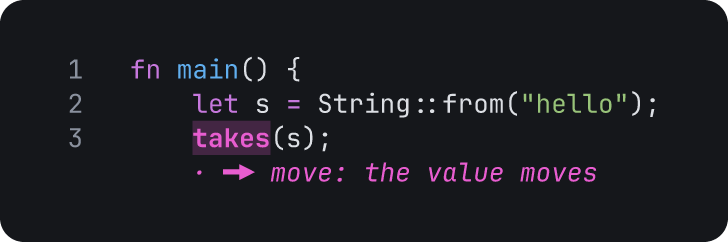
box
| Field | Type | Default | Meaning |
|---|---|---|---|
from_line | integer | Required | The first line of the box. |
to_line | integer | Required | The last line of the box, not before from_line. |
label | string | No default | The text on the box. |
border | string | "solid" | The line of the border, one of the stroke values. |
corners | "rounded" or "sharp" | "rounded" | The shape of the corners. |
fill | true or false | true | When true, Tiza tints the inside of the box. |
A box from :box, as its frame shows it:
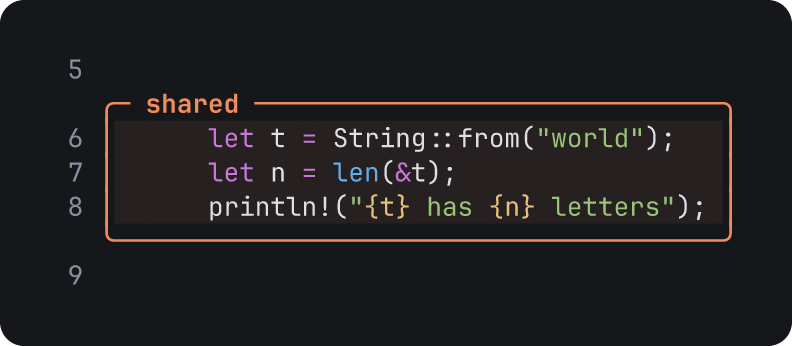
arrow
| Field | Type | Default | Meaning |
|---|---|---|---|
from | object | Required | The start of the arrow, an arrow end. |
to | object | Required | The end of the arrow, an arrow end. |
label | string | No default | The text on the arrow. |
stroke | string | "solid" | The line of the arrow, one of the stroke values. |
route | "rounded" or "sharp" | "rounded" | The shape of the corners. |
heads | object {start, end} | {"start": "none", "end": "arrow"} | The heads at the two ends, each one of the head values. |
An arrow from :arrow, as its frame shows it:
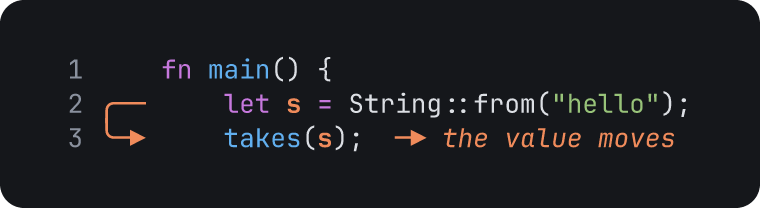
note
| Field | Type | Default | Meaning |
|---|---|---|---|
line | integer | Required | The line of the note. |
text | string | Required | The text of the note, which is not blank. |
A note from :note, as its frame shows it:
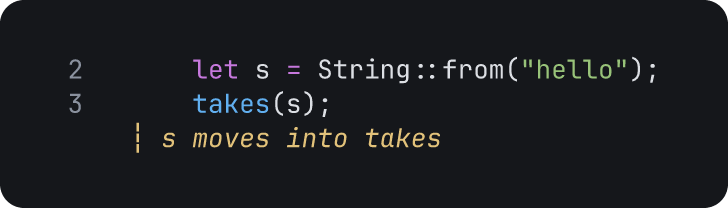
callout
| Field | Type | Default | Meaning |
|---|---|---|---|
from_line | integer | Required | The first line that the callout explains. |
to_line | integer | from_line | The last line that the callout explains, not before from_line. |
text | string | Required | The text of the callout, which is not blank. |
title | string | No default | The title of the callout. |
placement | "margin", "below" or "auto" | "margin" | Where Tiza draws the callout. |
width | integer | Depends on placement | The width at which Tiza wraps the text, in columns. |
border | string | "solid" | The line of the border, one of the stroke values. |
corners | "rounded" or "sharp" | "rounded" | The shape of the corners. |
fill | true or false | false | When true, Tiza tints the inside of the callout. |
A callout from :callout, as its frame shows it:

spotlight
| Field | Type | Default | Meaning |
|---|---|---|---|
from_line | integer | Required when there are no ids | The first line that the spotlight does not dim. |
to_line | integer | from_line | The last line that the spotlight does not dim, not before from_line. |
ids | array of ids | Required when there is no from_line, else [] | The ids of annotations in the document that the spotlight does not dim, also outside its lines. |
until | integer | No default | The last step at which the spotlight is active. When until is before step, the spotlight never shows, and tiza check gives the error until. |
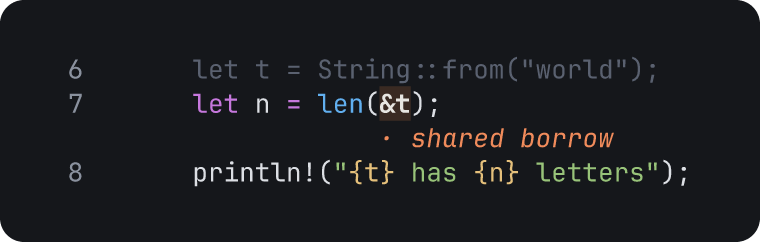
A spotlight from :spot, as its frame shows it:
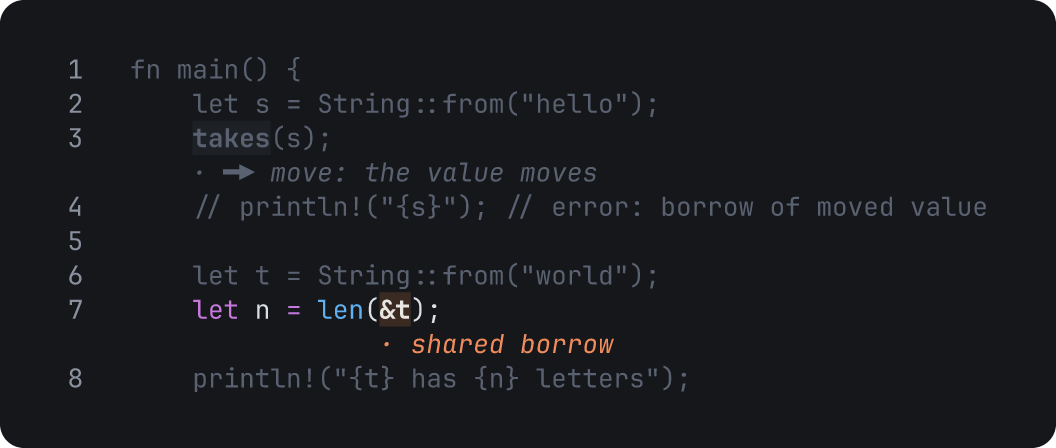
A spotlight with only ids, from :spot with an id:
Values of annotation fields
- Stroke values:
solid,dashed,dotted,thick,double. The frames of:arrow,:boxand:calloutshowdashed,thickanddouble. - Head values:
none,arrow,dot,bar,open. The frames of:arrowand:setshow each one. - Emphasis values:
fill,underline,brackets,strike. The frames of:hlwith an emphasis show each one.
Each value has this meaning:
emphasis:filltints the span.emphasis:underlinedraws a row under the span.emphasis:bracketsdraws⌈ ⌉beside the span. When one side of the span has no space, it draws⌊ ⌋on a row under the span, under its first and its last character. At the end of the longest line, the code column has no space after the span. A span that is one column wide keeps its bracket beside it on the side with space, and the other bracket goes under it. When it has no space on either side, it gets⊔under it.emphasis:strikedraws a line through the span.emphasis:fillis the default. Tiza does not write it to the file.placement:marginputs the callout in the right margin.placement:belowputs the callout in its own rows afterto_line.placement:autouses the margin when the terminal has room.width: in the margin, the default is 34. Tiza keeps the width from 8 to 5 columns less than the margin.width: below the code, the default is the room below the code. Tiza keeps the width in that room.width: the block is as wide as its widest line of text, plus 4 columns for the borders and the padding.title: in the margin, a long title makes the block wider. Below the code, Tiza cuts a long title in the border.
Rules for annotations
- A spotlight is active from its
steptountil. Withoutuntil, it is active only at itsstep. - A spotlight dims the code outside its lines. It does not dim the code of the annotations in its
ids. - A spotlight also dims each annotation that does not touch its lines and that is not in its
ids. - A dimmed mark keeps its label, in the dimmed color.
- An annotation touches the lines of a spotlight when one or more of its lines are in the range. The lines of a box or a callout go from
from_linetoto_line. The lines of an arrow go from one end to the other. Thus an arrow that goes across the range touches it. - A spotlight with only
idsshows only the code of those annotations. It dims all the other annotations. - When two or more spotlights are active at one step, Tiza uses the lines and the
idsof all of them.
Two spotlights at step 1: one on lines 2 and 3, and one on the highlight h1. The image is a real tiza render export of this document at step 1:
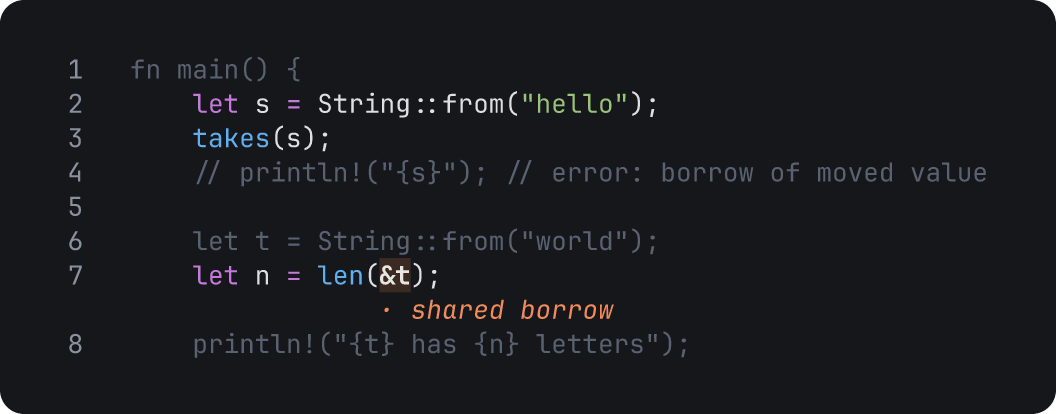
spot-two.tiza
{
  "schema": 1,
  "source": {},
  "code": {"file": "ownership.rs", "lines": "1-8"},
  "annotations": [
    {"id": "h1", "step": 1, "type": "highlight",
     "span": {"line": 7, "start": 16, "end": 18}, "label": "shared borrow"},
    {"id": "s1", "step": 1, "type": "spotlight", "from_line": 2, "to_line": 3},
    {"id": "s2", "step": 1, "type": "spotlight", "ids": ["h1"]}
  ]
}
Save it as spot-two.tiza next to ownership.rs. Then run tiza spot-two.tiza --step 1.
- Tiza refuses a blank
text, and a range that ends before it starts, when you add an annotation. - An annotation whose lines are not in the code stays in the file. Tiza does not draw it, and
tiza checkgives an error for it.
Span and arrow end
A span covers part of one line. An arrow end is one place in the code.
Span
| Field | Type | Default | Meaning |
|---|---|---|---|
line | integer | Required | The line of the span. |
start | integer | Required | The first grapheme (one character as you see it), counted from 0. |
end | integer | Required | The grapheme after the last one, more than start and at most the length of the line. |
Arrow end
| Field | Type | Default | Meaning |
|---|---|---|---|
line | integer | Required | The line of the arrow end. |
col | integer | Required | The grapheme of the arrow end, counted from 0, at most the length of the line. |
Kinds
The kind of a mark is one of these:
- A built-in kind:
info,note,warn,error,ok,question,important,read,write,move,new,drop,scope,flow,todo. - An alias of a built-in kind, from the table under this list.
- The name of a style in
styles. A style with the name of a built-in kind replaces that kind. - The name of a personal style in
[styles]of the config file. Tiza then copies the style intostyles. See Personal styles. - Any name, when the mark has a
stylewith aglyph. The name is then the default legend.
When you add a mark, Tiza refuses any other kind. A loaded file keeps such a mark, and tiza check reports it. Case does not matter for a built-in kind or an alias.
| Alias | Kind |
|---|---|
borrow, ref, & | read |
borrow_mut, borrowmut, mut, &mut | write |
lifetime, life, 'a | scope |
free, delete | drop |
alloc, create | new |
bug | error |
warning | warn |
tip | info |
Each built-in kind has its own glyph, legend and color. A mark with no label shows only the glyph and the legend. These images are real tiza render exports at step 1 of docs/frames/kinds-1.tiza and docs/frames/kinds-2.tiza:
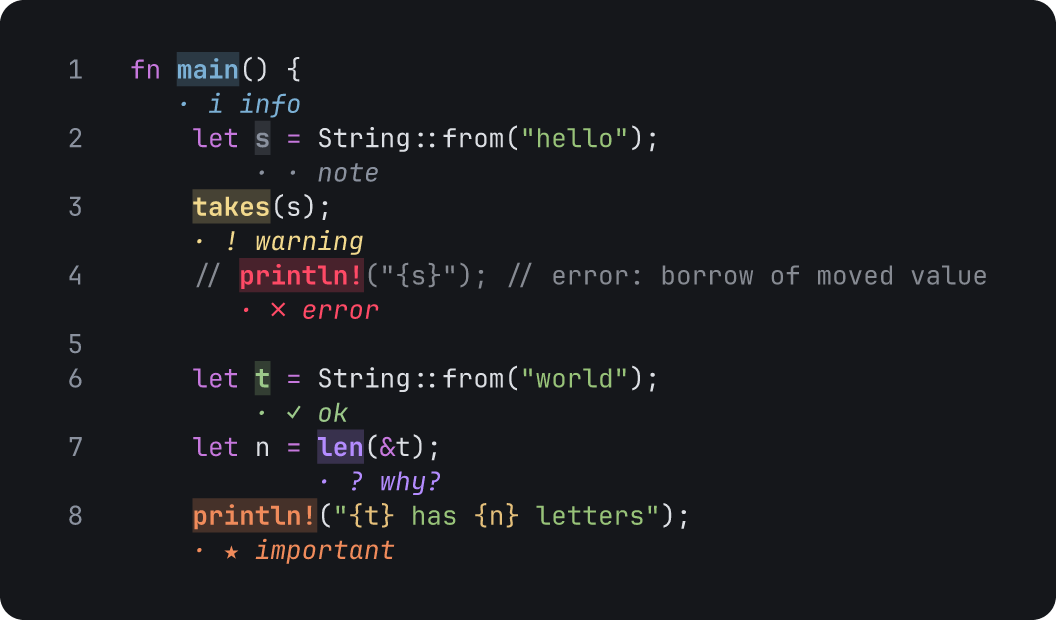
kinds-1.tiza
{
  "schema": 1,
  "source": {},
  "code": {
    "file": "ownership.rs",
    "lines": "1-8"
  },
  "annotations": [
    {"id": "m1", "step": 1, "type": "mark", "kind": "info", "span": {"line": 1, "start": 3, "end": 7}},
    {"id": "m2", "step": 1, "type": "mark", "kind": "note", "span": {"line": 2, "start": 8, "end": 9}},
    {"id": "m3", "step": 1, "type": "mark", "kind": "warn", "span": {"line": 3, "start": 4, "end": 9}},
    {"id": "m4", "step": 1, "type": "mark", "kind": "error", "span": {"line": 4, "start": 7, "end": 15}},
    {"id": "m5", "step": 1, "type": "mark", "kind": "ok", "span": {"line": 6, "start": 8, "end": 9}},
    {"id": "m6", "step": 1, "type": "mark", "kind": "question", "span": {"line": 7, "start": 12, "end": 15}},
    {"id": "m7", "step": 1, "type": "mark", "kind": "important", "span": {"line": 8, "start": 4, "end": 12}}
  ]
}
Save it as kinds-1.tiza next to ownership.rs. Then run tiza kinds-1.tiza --step 1.
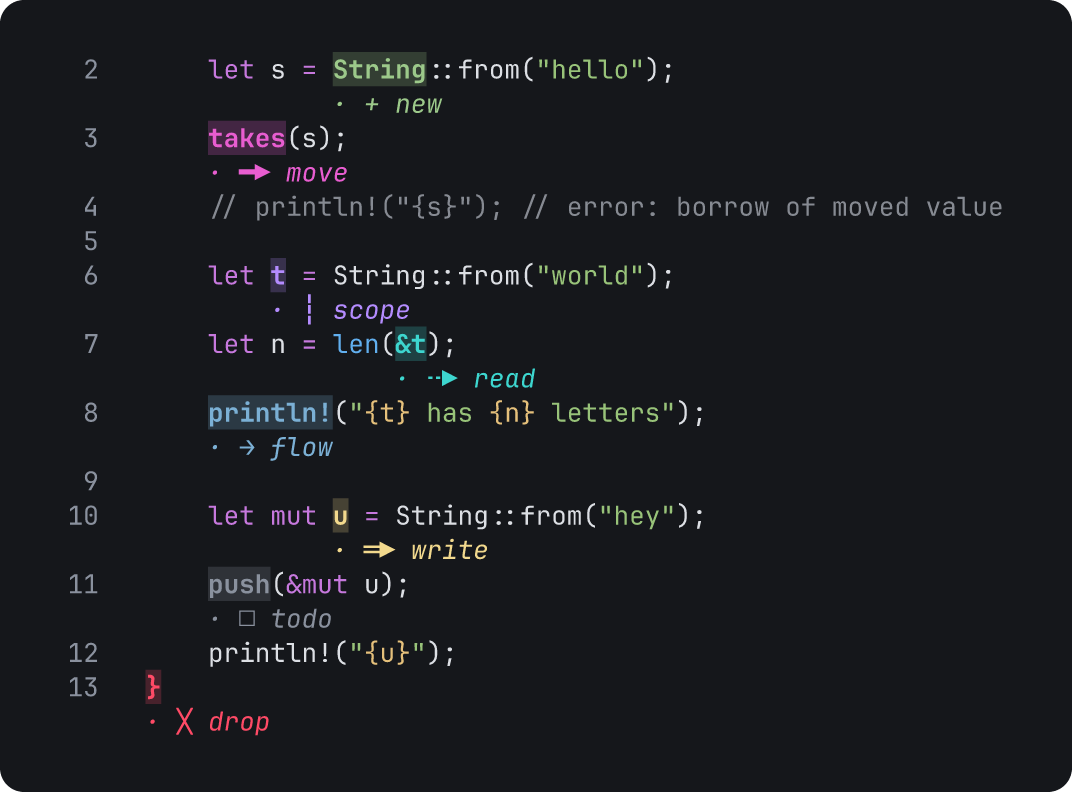
kinds-2.tiza
{
  "schema": 1,
  "source": {},
  "code": {
    "file": "ownership.rs",
    "lines": "2-13"
  },
  "annotations": [
    {"id": "m1", "step": 1, "type": "mark", "kind": "new", "span": {"line": 2, "start": 12, "end": 18}},
    {"id": "m2", "step": 1, "type": "mark", "kind": "move", "span": {"line": 3, "start": 4, "end": 9}},
    {"id": "m3", "step": 1, "type": "mark", "kind": "scope", "span": {"line": 6, "start": 8, "end": 9}},
    {"id": "m4", "step": 1, "type": "mark", "kind": "read", "span": {"line": 7, "start": 16, "end": 18}},
    {"id": "m5", "step": 1, "type": "mark", "kind": "flow", "span": {"line": 8, "start": 4, "end": 12}},
    {"id": "m6", "step": 1, "type": "mark", "kind": "write", "span": {"line": 10, "start": 12, "end": 13}},
    {"id": "m7", "step": 1, "type": "mark", "kind": "todo", "span": {"line": 11, "start": 4, "end": 8}},
    {"id": "m8", "step": 1, "type": "mark", "kind": "drop", "span": {"line": 13, "start": 0, "end": 1}}
  ]
}
Save it as kinds-2.tiza next to ownership.rs. Then run tiza kinds-2.tiza --step 1.
Mark style
Each entry of styles, and the style of a mark, has these fields. The style of a mark replaces each field that it gives.
| Field | Type | Default | Meaning |
|---|---|---|---|
glyph | string | The glyph of the kind | The sign before the legend, which should be one or two columns wide. |
legend | string | The legend of the kind | The text after the glyph, followed by : and the label of the mark. |
color | string | The color of the kind | A color name or #rrggbb. |
Color names
| Name | Aliases |
|---|---|
orange | rust, naranja, accent |
blue | azul |
green | verde |
purple | morado, violeta |
pink | magenta, rosa |
cyan | teal, cian |
yellow | amarillo |
red | rojo |
gray | grey, gris |
The nine color names, on highlights. The image is a real tiza render export at step 1 of docs/frames/colors.tiza:
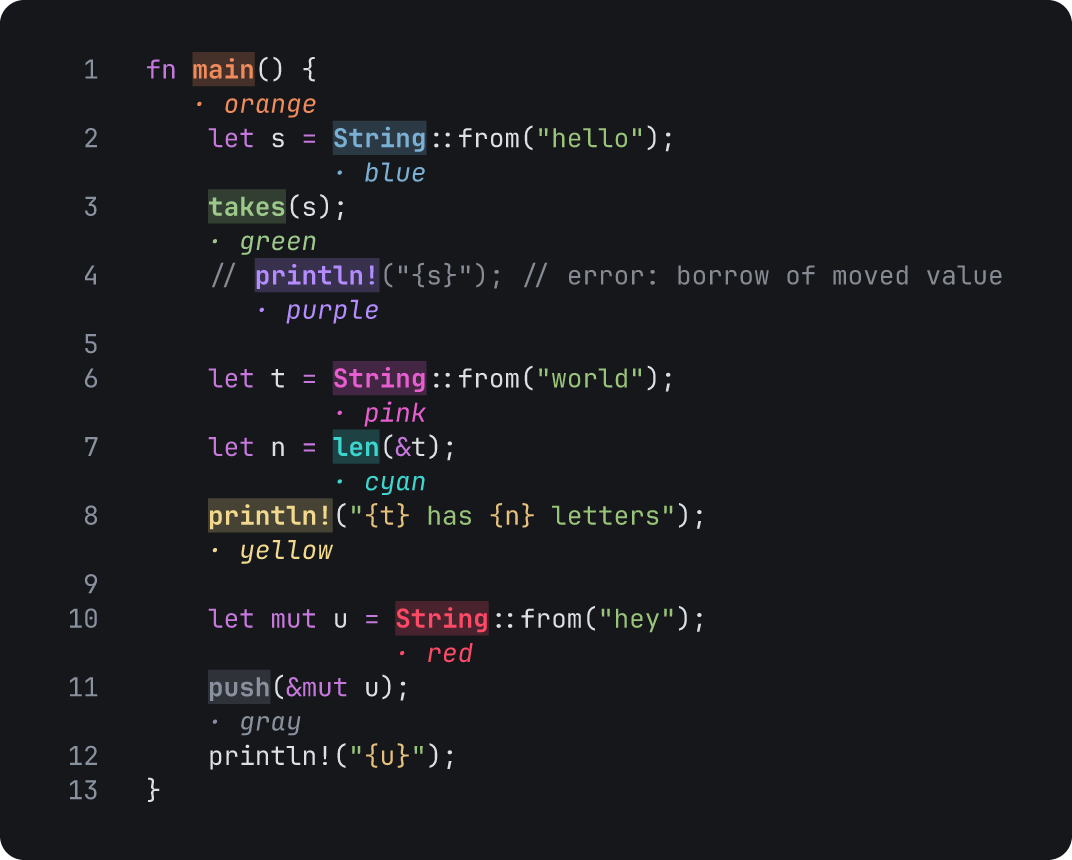
colors.tiza
{
  "schema": 1,
  "source": {},
  "code": {
    "file": "ownership.rs",
    "lines": "1-13"
  },
  "annotations": [
    {"id": "h1", "step": 1, "type": "highlight", "span": {"line": 1, "start": 3, "end": 7}, "label": "orange", "color": "orange"},
    {"id": "h2", "step": 1, "type": "highlight", "span": {"line": 2, "start": 12, "end": 18}, "label": "blue", "color": "blue"},
    {"id": "h3", "step": 1, "type": "highlight", "span": {"line": 3, "start": 4, "end": 9}, "label": "green", "color": "green"},
    {"id": "h4", "step": 1, "type": "highlight", "span": {"line": 4, "start": 7, "end": 15}, "label": "purple", "color": "purple"},
    {"id": "h5", "step": 1, "type": "highlight", "span": {"line": 6, "start": 12, "end": 18}, "label": "pink", "color": "pink"},
    {"id": "h6", "step": 1, "type": "highlight", "span": {"line": 7, "start": 12, "end": 15}, "label": "cyan", "color": "cyan"},
    {"id": "h7", "step": 1, "type": "highlight", "span": {"line": 8, "start": 4, "end": 12}, "label": "yellow", "color": "yellow"},
    {"id": "h8", "step": 1, "type": "highlight", "span": {"line": 10, "start": 16, "end": 22}, "label": "red", "color": "red"},
    {"id": "h9", "step": 1, "type": "highlight", "span": {"line": 11, "start": 4, "end": 8}, "label": "gray", "color": "gray"}
  ]
}
Save it as colors.tiza next to ownership.rs. Then run tiza colors.tiza --step 1.
- Case does not matter. A hex color has exactly six digits, so
#rgbis not a color of an annotation. - Tiza refuses an unknown color when you add an annotation. In a file, Tiza draws an annotation with an unknown color in its default color.
accentgives the accent color of the theme. An override oforangedoes not changeaccent.- An arrow without a color takes the next color of a palette of seven colors:
orange,blue,green,purple,cyan,pink,yellow. The eighth arrow starts the palette again. - A mark without a color uses the color of its kind or its style. For example,
moveis pink andreadis cyan. - A box without a color uses the box color of the theme. A note or a callout uses the note color, and a highlight or a spotlight uses the accent color.
Arrow styles
The stroke and heads fields change the look of an arrow. For example, examples/ownership.rs.tiza shows a shared borrow with a dashed arrow and a mutable borrow with a thick arrow. In :arrow, heads=none,none gives an arrow with no heads.
Theme overrides
theme_overrides is an object. Each key is a role, a color name or a theme name.
| Key | Value |
|---|---|
| A role, from the list under this table | A color value |
| A color name, from the list under this table | A color value |
dark, light or terminal | An object with the same keys, which applies only with that theme |
- Roles:
bg,fg,muted,dimmed,accent,rail,box_line,box_bg,arrow,note,highlight_bg,status_bg,status_fg,cmd_bg,error. - Color names:
orange,blue,green,purple,pink,cyan,yellow,red,gray.
A color value is one of these:
#rrggbbor#rgb.rgb(r, g, b).- An ANSI name, for example
redorbright-blue. It gives a color of the terminal palette. ansiN, a color of the terminal palette from 0 to 255.reset,defaultornone, the default color of the terminal.
A color name of an annotation, such as orange, is not a color value. red, blue and the other names that are also ANSI names give the colors of the terminal. In an export, a token with a color of the terminal palette uses the color of the dark or light theme, and Tiza prints a note. The keys are the same as in the [theme] table of the config file.
For example, a document that changes the accent role, the color of a highlight, and the note role. :theme file writes this field from a theme file: see Change a color. The image is a real tiza render export of this document at step 1, with the dark theme:
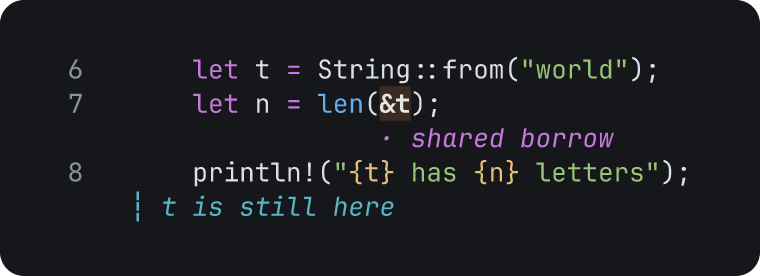
theme-overrides.tiza
{
  "schema": 1,
  "source": {},
  "code": {"file": "ownership.rs", "lines": "6-8"},
  "theme_overrides": {"accent": "#c678dd", "note": "#56b6c2"},
  "annotations": [
    {"id": "h1", "step": 1, "type": "highlight",
     "span": {"line": 7, "start": 16, "end": 18}, "label": "shared borrow"},
    {"id": "n1", "step": 1, "type": "note", "line": 8, "text": "t is still here"}
  ]
}
Save it as theme-overrides.tiza next to ownership.rs. Then run tiza theme-overrides.tiza --step 1.
Moves
A move changes the code or the view at a step. The moves list of a document holds them.
napplies the moves of the next step.preverts them.- Tiza always computes the document again from the code of step 0. Thus the document returns to the same state after any number of steps forward and back.
Every move has at_step and action. A code.patch move can also have rebind:
| Field | Type | Default | Meaning |
|---|---|---|---|
at_step | integer | Required | The step of the move, from 1 to 999. |
action | string | Required | The action of the move, one of the actions in the table under this one. |
rebind | object | {} | The new place of each annotation that the move replaces or deletes (see Annotations after a code.patch move). |
| Action | What it does |
|---|---|
code.patch | Inserts, replaces or deletes whole lines of the file shown at its step. |
code.link | Shows another file from its step on (see Several files). |
cursor | Puts the cursor on a line. |
select | Selects a span. |
wait | Pauses before the annotations of the step appear. |
scroll | Moves the view of the TUI to a line, a text or an annotation (see Scroll). |
Several moves at one step run in the order of the list.
Moves from a newer version
A newer version of Tiza can write a move that this version does not know. The document opens:
- Tiza skips a move with an
actionthat this version does not know. The other moves of its step run in the order of the list. alignandtypinghave a list of values. When a move has a value that this version does not know, the move uses the default of the field.ophas no default, so Tiza skips the move.- A key that this version does not know has no effect, for example
aliginstead ofalign. - When the TUI opens the file, it writes each skipped move and each value on stderr, where you see the line after the TUI ends. The status bar shows how many entries are not known, with the effects that this version does not know, for example
6 entries are not known: see tiza check. In presentation mode, the last row shows it for 2 seconds.tiza renderalso writes the line on stderr. tiza checkgives the warningmovefor each skipped move, for each value, and for each move with a key that this version does not know. The warning names a move by its number in the file.- A save does not keep the skipped moves, the values or the keys.
- The step of a skipped move is still a step. A step that has only skipped moves changes nothing. When that step is the last step, the take ends one step before it.
- A later move can need the code that a skipped move changes. Then Tiza does not open the document. The error names the later move and the skipped move.
move.add,scene.put,tiza scene putandadd_moverefuse a move with an action or a value that this version does not know.move.add,scene.putandtiza scene putalso refuse a key of a move that this version does not know, or a key inside a position.add_moverefuses an argument that the action does not use.
Fields of a code.patch move
| Field | Type | Default | Meaning |
|---|---|---|---|
op | "insert", "replace" or "delete" | Required | The change to make. |
position (insert) | string | Required when it is the target | For insert, the one line before which Tiza puts the content, up to one more than the last line. |
position (replace, delete) | string | Required when it is the target | For replace and delete, the line range, "7" or "7-9". |
after, before | string | Required when it is the target | For insert only, a text in the line next to the new content. |
find | string | Required when it is the target | For replace and delete only, a text in the one line to change. |
find_start, find_end | string | Required together when they are the target | For replace and delete only, texts in the first line and the last line of the range. |
occurrence | integer | No default | The match of find, after, before or find_start to use, from 1. |
end_occurrence | integer | No default | The match of find_end to use, from 1. |
content | string | Required for insert and replace | The new lines, with \n between them. |
typing | "instant", "line" or "char" | "instant" | How Tiza shows the new lines. |
speed_ms | integer | 120 for line, 25 for char | The milliseconds for each line or each character, at most 3,600,000. |
- Give exactly one target:
position,after,before,find, orfind_startwithfind_end. - An insert
positionis one line. Tiza refuses a range. - A
deletehas nocontent. Tiza ignores a\nat the end ofcontent. find_endmust not come beforefind_start.
Each image in this section is a real tiza render export of the document above it, from step 0 to step 1. The code is docs/frames/ownership.rs, a copy of examples/ownership.rs.
An insert puts a line after the line with let n = len(&t);:
patch-insert.tiza
{
  "schema": 1,
  "source": {},
  "code": {"file": "ownership.rs", "lines": "6-8"},
  "moves": [
    {"at_step": 1, "action": "code.patch", "op": "insert",
     "after": "let n = len(&t);", "content": "    let m = n * 2;"}
  ]
}
Save it as patch-insert.tiza next to ownership.rs. Then run tiza patch-insert.tiza --present --step 0, and press → to go to the next step.
A replace changes the line with println!:
patch-replace.tiza
{
  "schema": 1,
  "source": {},
  "code": {"file": "ownership.rs", "lines": "6-8"},
  "moves": [
    {"at_step": 1, "action": "code.patch", "op": "replace",
     "find": "println!", "content": "    println!(\"{n} letters in {t}\");"}
  ]
}
Save it as patch-replace.tiza next to ownership.rs. Then run tiza patch-replace.tiza --present --step 0, and press → to go to the next step.
A delete removes the line with println!:
patch-delete.tiza
{
  "schema": 1,
  "source": {},
  "code": {"file": "ownership.rs", "lines": "6-8"},
  "moves": [
    {"at_step": 1, "action": "code.patch", "op": "delete", "find": "println!"}
  ]
}
Save it as patch-delete.tiza next to ownership.rs. Then run tiza patch-delete.tiza --present --step 0, and press → to go to the next step.
Where a code.patch move goes
Tiza finds a target on the code as it is at the step of the move. The target must match exactly once, or occurrence names the match.
- A text target matches part of a line. A line that holds the text two times counts as two matches.
- When the text occurs more than once, add
"occurrence": Nto name the match.Nstarts at 1. - Tiza counts the matches in reading order over the whole code at that step.
end_occurrencedoes the same forfind_end.
Typing
With "typing": "line" or "char", Tiza types the content on the screen.
speed_msis the time for each line or each character.- The annotations of the step appear when the typing ends.
- Any key except Ctrl-C finishes the typing. Tiza uses that key only to finish the typing.
- In presentation mode, with the live pointer off, a key that only moves the view does not finish the typing:
↑,↓,j,k,J,K,g,G,HomeandEnd. The view moves, and the typing continues. - Thus an
nduring the typing finishes the typing. It does not go to the next step. Pressnagain.
Each image in this section is a real tiza render export of the document above it, from step 0 to step 1. An animated export types as the TUI does.
"typing": "line" types the new lines one at a time. Here speed_ms gives each line 600 ms, so the pause between the two lines shows:
typing-line.tiza
{
  "schema": 1,
  "source": {},
  "code": {"file": "ownership.rs", "lines": "6-8"},
  "moves": [
    {"at_step": 1, "action": "code.patch", "op": "insert", "after": "let t",
     "content": "    let u = t.clone();\n    let v = u.len();", "typing": "line",
     "speed_ms": 600}
  ]
}
Save it as typing-line.tiza next to ownership.rs. Then run tiza typing-line.tiza --present --step 0, and press → to go to the next step.
"typing": "char" types the new line one character at a time:
typing-char.tiza
{
  "schema": 1,
  "source": {},
  "code": {"file": "ownership.rs", "lines": "6-8"},
  "moves": [
    {"at_step": 1, "action": "code.patch", "op": "replace", "find": "let n = len(&t);",
     "content": "    let n = t.chars().count();", "typing": "char"}
  ]
}
Save it as typing-char.tiza next to ownership.rs. Then run tiza typing-char.tiza --present --step 0, and press → to go to the next step.
Annotations after a code.patch move
You add an annotation on the code at its own step. A later move changes the lines. Tiza moves the annotation with them. It does not search for text.
- An insert or a delete moves the lines after it.
- A box that loses an edge line gets smaller.
- When a
replacereplaces a line, a note, a box, a callout or a spotlight on that line goes to the new line. This occurs only when the new content has a line at that position. - When the new content has fewer lines, the extra old lines are gone. A note on one of them loses its line, and a box gets smaller.
- On a replaced line, a highlight, a mark or an arrow end has no text under its span. Tiza hides it as unanchored. Tiza never deletes it.
- Tiza also hides an annotation that loses every line.
rebind gives the new place of each annotation that the move replaces or deletes. Each key is the id of an annotation. Tiza finds the target of each entry on the code after the move. For example:
"rebind": {"a4": {"at": {"find": "t.len()", "occurrence": 1}}}| Annotation | Fields of a rebind entry |
|---|---|
| A highlight or a mark | at, a point |
| A note | at, a point, or from_line |
| An arrow | from, to or both, each a point |
| A box, a callout or a spotlight | from_line, to_line or both |
- Each field of an entry is optional, but an entry needs at least one. Tiza refuses a key that it does not know. It also refuses an empty entry for an annotation of the document.
- Only a
code.patchmove can haverebind. - Tiza keeps an entry for an annotation that is not in the document, and ignores it.
tiza rendergives a warning for it, andtiza checknames it.
A highlight on len(&t) at step 1, and a replace of its line at step 2 with a rebind entry for it. The image is a real tiza render export of this document, from step 1 to step 2:
rebind.tiza
{
  "schema": 1,
  "source": {},
  "code": {"file": "ownership.rs", "lines": "6-8"},
  "annotations": [
    {"id": "h1", "step": 1, "type": "highlight",
     "span": {"line": 7, "start": 12, "end": 19}, "label": "borrow"}
  ],
  "moves": [
    {"at_step": 2, "action": "code.patch", "op": "replace", "find": "let n = len(&t);",
     "content": "    let n = t.len();", "rebind": {"h1": {"at": {"find": "t.len()"}}}}
  ]
}
Save it as rebind.tiza next to ownership.rs. Then run tiza rebind.tiza --present --step 1, and press → to go to the next step.
:list marks a hidden annotation ! unanchored. The socket method scene.list and the MCP tool list_annotations mark it (unanchored). tiza check gives a warning for it, with its steps.
Point
select and a rebind entry use this object for one point of the code.
| Field | Type | Default | Meaning |
|---|---|---|---|
find | string | Required when there is no line | The text to find in the code. |
occurrence | integer | No default | The match of find to use, from 1. |
line | integer | Required when there is no find | The line of the point, or the line where find searches (see the list under this table). |
col | integer | Depends on the use (see the list under this table) | The grapheme of the point, counted from 0, at most the length of the line. |
end | integer | The end of the line | In a rebind at with line, the grapheme after the span, at most the length of the line. |
- In a
select,findsearches onlylinewhen the point has one. Otherwise it searches the whole code. - In a
select,findmust match exactly once, or the point must haveoccurrence. - In a
rebindentry,findsearcheslinefirst, and then the whole code. - In a
rebindentry withoutline,findmust match exactly once, or the point must haveoccurrence. Withline, Tiza does not check the number of matches. - In a
select,findinfromstarts at the start of the text, andfindintoends at the end of the text. - The edge of
findthat gives a column must be on the edge of a character (a grapheme). That is the start in thefromof aselectand the end in itsto, the two edges in arebindentry of a span, and the start in arebindentry of an arrow end. For example, a joiner alone inadU+200Dminis an error. Put the whole character infind, or uselineandcol. Theatof a note takes only the line, so there it is not an error. A document whoseselectorrebindentry has such afinddoes not open, and the error names the move.tiza checkgives the same error. - In a
selectwithoutcol,fromis the start of the line andtois the end of the line. In arebindentry, the defaultcolis 0.
Several files
A code.link move shows another file from its step on. Each file is a view, with its own annotations. For example:
{"at_step": 2, "action": "code.link", "file": "src/queue.rs", "lines": "10-36"}| Field | Type | Default | Meaning |
|---|---|---|---|
file | string | Required | The file to show, as a path relative to the .tiza file. |
lines | "7" or "7-30" | The whole file | The window of the file on the screen, starting at line 1. |
At step 2, :link src/queue.rs:10-36 adds the same move.
- An annotation that you add while a file is shown belongs to that file. It gets a
"file"field. Withoutfile, it belongs to the document's own file. - The lines of an annotation are the real line numbers of its file.
linesis only a window that crops the screen. Tiza keeps a note outside the window. Tiza does not draw it.- The same file with another window is the same view.
- When you link the document's own file again, its annotations return exactly as they were.
- At the step of a
code.link, the cursor goes to the first line that the link shows. That is the first line of the file, or of its window. The view goes with the cursor. This also occurs when the link goes back to the document's own file. - In normal mode, this also occurs at each later step, until another
cursor,code.linkorscrollmove. Acursormove does the same with its line. In presentation mode, it occurs only at the step of the move. - A
code.patchmove changes the file shown at its step. :embedstores every linked file underviews. Thus the document stays one.tizafile.- A document fails to load when a linked file cannot be read. The error names the move and the path.
This image is a real tiza render export of the document under this paragraph, from step 0 to step 1. At step 1, the screen shows lines 17 to 23 of queue.rs, with a box of that file. A note on each file names it: the export does not show the name of a file.
link.tiza
{
  "schema": 1,
  "source": {},
  "code": {"file": "ownership.rs", "lines": "1-4"},
  "moves": [
    {"at_step": 1, "action": "code.link", "file": "queue.rs", "lines": "17-23"}
  ],
  "annotations": [
    {"id": "n0", "step": 0, "type": "note", "line": 1, "text": "ownership.rs"},
    {"id": "n1", "step": 1, "type": "note", "file": "queue.rs", "line": 17, "text": "queue.rs"},
    {"id": "b1", "step": 1, "type": "box", "file": "queue.rs",
     "from_line": 21, "to_line": 23, "label": "the other end"}
  ]
}
Save it as link.tiza next to ownership.rs and queue.rs. Then run tiza link.tiza --present --step 0, and press → to go to the next step.
When a document has a code.link move or an annotation of another file, :list groups the annotations of each step by file. scene.list ends the line of an annotation of another file with that file. For example:
a4 [step 3] box L15-17 (src/queue.rs)Cursor, select and wait
cursor
| Field | Type | Default | Meaning |
|---|---|---|---|
line | integer | Required | A line of the shown file. |
col | integer | 0 | The grapheme of the cursor, at most the length of the line. |
select
| Field | Type | Default | Meaning |
|---|---|---|---|
from | object | Required | The start of the selection, a point. |
to | object | Required | The end of the selection, a point. |
wait
| Field | Type | Default | Meaning |
|---|---|---|---|
ms | integer | Required | The pause in milliseconds, from 1 to 3,600,000. |
napplies these moves.preverts them.- A
code.linkmove removes the cursor and the selection. tiza render --step Nand the image exports draw the cursor and the selection immediately.- The TUI, the GIF, MP4 and WebM exports and the
.tapeshow the pause of await. A.castadds the pause to the time of the step, except at the last step. - A still export ignores a
wait.
A cursor move at step 1 and a select move at step 2. The image is a real tiza render export of this document, from step 1 to step 2:
cursor-select.tiza
{
  "schema": 1,
  "source": {},
  "code": {"file": "ownership.rs", "lines": "6-8"},
  "moves": [
    {"at_step": 1, "action": "cursor", "line": 6, "col": 8},
    {"at_step": 2, "action": "select",
     "from": {"line": 7, "find": "len(&t)"}, "to": {"line": 7, "find": "len(&t)"}}
  ]
}
Save it as cursor-select.tiza next to ownership.rs. Then run tiza cursor-select.tiza --present --step 1, and press → to go to the next step.
Scroll
A scroll move moves the view of the TUI to a line, a text or an annotation when the presenter reaches its step. Thus an effect never plays out of the view. A step that has only a scroll move is a camera step: the view moves, and nothing else changes.
| Field | Type | Default | Meaning |
|---|---|---|---|
line | integer | Required when it is the target | A line of the code where the move runs. |
find | string | Required when it is the target | A text of the code where the move runs. The view goes to its first match. |
occurrence | integer | No default | With find only: the match to use, from 1. |
annotation | string | Required when it is the target | The id of an annotation. The view shows its lines, with its borders and its labels. |
align | "top", "center", "bottom" or "show" | "center" | Where the target goes in the view. "show" moves the view as little as possible to show the target. |
A scroll move has exactly one target: line, find or annotation.
{"at_step": 3, "action": "scroll", "line": 50}
{"at_step": 4, "action": "scroll", "find": "fn drop", "align": "top"}
{"at_step": 5, "action": "scroll", "annotation": "b2", "align": "bottom"}
The view goes to fn takes at step 2, a camera step. The document has a note at step 1, a scroll move with "find": "fn takes" and "align": "top" at step 2, and a box with the draw effect at step 3. The code is examples/ownership.rs. This is a screen recording of the TUI in presentation mode, in a real terminal of 100 columns and 10 rows, with the Menlo font.
- When the presenter reaches the step, the view moves to the target. Then the annotations of the step come in, with their effects.
- The view stays on the target while its rows move: when the annotations of the step come in after a typed move or a
wait, when presentation mode starts or stops, and when the terminal changes size. When the presenter moves the view, the cursor or the pointer, the view stays where the presenter puts it. - In normal mode, a step with no
scrollmove of its own does not move the view. In presentation mode, when you go to a step or Tiza opens at it, the new annotations of the step and the lines that its moves write come into the view, and the view moves as little as possible. See Present for when this occurs.:gotoand the other goto commands move the view to the target of thescrollof their step, and in presentation mode they then show what comes in at the step. A goto to the step on screen does the same as a goto to it from a step of the same file. Thus acursoror acode.linkof the step puts the cursor on its line again, and the view goes with it. - At a step that no
scrollmove reaches (noscrollat that step or before it), after a step with one, the view goes to the top. Acursoror acode.linkmove then moves the view only when its line is not in view. - A
cursor, acode.linkand ascrollmove all put the view somewhere. The last of them in the order that the moves run wins: the order of the steps, then the order of the list. When acursoror acode.linkwins, the view does what it did beforescroll. In presentation mode, acursoror acode.linkmoves the view only at its own step. - In a step that types, a
scrollmove moves the view at its place in the list, before or after a typed move or await. It takes no time. - The annotation can be of a later step. The view then goes to the lines where the annotation will come in.
- The view keeps rows for the parts of the target that come in later: the borders, the labels and the callouts of an annotation of a later step, or of the step after a typed move or a
wait. When they come in, the lines of the target keep their rows. The new rows above the target push the code above it up, and the new rows under the target push the code under it down. Rows that come in inside the target make it taller, so its lines move apart. - Near the start or the end of the code, the view stops at the first or the last line. The target then stays as near to its place as it can.
- When the live pointer is on and the view moves, the pointer stays if the new view shows its lines. If not, the pointer goes off.
- A
scrollmove puts the cursor on the first line of its target. When the live pointer stays, the cursor stays with the pointer:jandkcontinue from the pointer. To go to an annotation, pressTab. - The view moves in normal mode and in presentation mode.
- A target that does not resolve does not stop the step: the
scrollmove does not place the view, andtiza checkgives a warning. In presentation mode, the new annotations of the step then come into the view. Examples are a line that is not in the code, a text that is not in the code, and an annotation that does not exist. - A
findthat matches more than once goes to the first match.tiza checkgives a warning, unlessoccurrencenames the match or all the matches are on one line. - When a later move of the same step removes the line of the target, the
scrollmove does not place the view, andtiza checkgives a warning. - The exports show the whole take, so they ignore
scrollmoves. A step that has only ascrollmove is a pause in a GIF, WebP, MP4 or WebM, as any step is. Itsauto_advance_msmakes the pause shorter. - Tiza 0.1.2 and older do not open a document that has a
scrollmove.
Exports and moves
tiza render --step Nand.castapply the moves immediately.- A
.taperuns the TUI, so the TUI types each typed move. A GIF, MP4 or WebM export shows the typing as frames. tiza render --step Nafter the last step writes a warning on stderr. It shows the last step.- An export that records the steps (GIF, MP4, WebM,
.cast,.tape) gives no such warning. - A
.tapeholds a step for its typing and itswaitmoves, plus half a second. When--intervalis longer, it holds the step for--interval.
Named steps
Named steps, auto-advance and loop are automation. Use them for an unattended export, a screen that loops or an editor task that goes to the next step. They do not add speaker notes, a timer or a remote control.
For example:
"steps": [{"step": 3, "id": "borrow", "title": "Shared borrow", "auto_advance_ms": 3000}]| Field | Type | Default | Meaning |
|---|---|---|---|
step | integer | Required | The number of the step that the entry names, from 0 to 999. |
id | string | No default | The name that the goto commands use, under the id rules of this section. |
title | string | No default | The text that the status bar and status show. |
auto_advance_ms | integer | No default | The time in milliseconds before Tiza goes to the next step by itself, from 1 to 3,600,000. |
- An entry names its step by number, never by its place in the list. Thus
+and-move an annotation to another step and change no entry. - Entries can skip steps. Tiza saves them sorted by
step. - One step has one entry or none.
An id must obey these rules. The error for each rule is in Messages.
- It is not empty. To give no id, leave the field out.
- It is unique.
- It is one word. A control character counts as a blank.
- It is not all digits, because a number always means a step number.
- It does not start with
-, becausetiza goto -1reads it as an option.
Go to a named step
The goto commands go to a step exactly as n does from step 0. Tiza applies the moves and the linked files again. A typed step shows all its text. An unknown id is a not_found error.
| Command | What it does |
|---|---|
:goto ID | Goes to the named step, or to a step number. |
step.goto {"id": "ID"} | The socket method that does the same as :goto ID. |
goto_step | The MCP tool that does the same as :goto ID. |
tiza goto ID | Makes the live instance do the same as :goto ID. |
tiza next | Makes the live instance go to the next step. |
tiza prev | Makes the live instance go to the previous step. |
tiza next,tiza prevandtiza gotoneed no JSON. They use the socket of the session, or--socketand--sessionastiza apidoes.- They print the step that the instance reached, for example
step 3/7 · Shared borrow. - When no instance runs, they exit with a non-zero code and an error. See Messages.
The status reply has these fields about the step:
| Field | Type | Meaning |
|---|---|---|
step | integer | The step on screen. |
max_step | integer | The last step of the document. |
step_id | string | The id of the step on screen. The reply leaves it out when the step has no id. |
step_title | string | The title of the step on screen. The reply leaves it out when the step has no title. |
step_label | string | The step and its title, for example step 3/7 · Shared borrow. |
auto_advance_ms | integer | The auto_advance_ms of the step on screen. The reply leaves it out when the step has none. |
loop | true | The document loops. The reply leaves it out when the document does not loop. |
Presentation mode has no status bar. Thus n, p and an auto-advance do not show the title in a take. A : command, such as :goto ID, shows its result on the last row for 2 seconds. That result can be step N/M · TITLE.
Auto-advance
With auto_advance_ms, the TUI goes to the next step by itself. The time starts when the step is ready: the typing has finished, and each wait move has elapsed.
- A key during the typing only finishes the typing. In presentation mode, with the live pointer off, a key that only moves the view moves the view and does not finish the typing.
- An open
:line, avorVselection, the help, the list or the review holds the countdown until it closes.
Exports use auto_advance_ms in different ways:
- A GIF, animated WebP, MP4 or WebM export holds such a step for
auto_advance_msinstead of--interval. - A
.tapeholds such a step for its typing plusauto_advance_ms, and sends nonfor the next step. - A
.castignoresauto_advance_ms. It holds each step for--intervalplus itswaitmoves. The last step holds for--intervalonly.
Loop
With "loop": true, n after the last step goes back to step 0. An auto-advance on the last step does the same. Without loop, Tiza stays on the last step.
Entries that Tiza does not use
Tiza never drops these entries:
- An entry for a step after the last step.
- A key of an entry that Tiza does not know, for example a typo or the old
timer_min.
Tiza keeps them in the file. It gives one warning for each entry, and the warning names all the unknown keys of that entry. The warning appears when you open the document. It also appears in status.warnings and in the output of tiza render and tiza check.
Only the entries of steps keep unknown keys. Tiza does not keep an unknown key at the top level, in an annotation or in a move. For a move, tiza check gives a warning (see Moves from a newer version).
A position can also have a key that Tiza does not know. These are the positions:
The document opens, and Tiza ignores the key. tiza check gives a warning with a known key that is near. A save does not keep the key, and tiza scene put refuses the document. A span calls its first grapheme start. An arrow end and a select point call it col.
The key can be a key that the position needs, under another name, for example col in a span. Then the position does not have the key that it needs, and the document does not open. The error names the key that Tiza took out, and the name to use.
Enter effects (experimental)
This function is an experiment. It can change or go away.
An enter effect shows how an annotation comes in when the step goes forward. Set it with the effect field of the annotation. An annotation without effect comes in at once, as before. The layout does not change. The effect only changes which cells of the final drawing show, and their colors.
{"id": "b1", "step": 2, "type": "box", "from_line": 10, "to_line": 14, "effect": "draw"},
{"id": "n1", "step": 2, "type": "note", "line": 11, "text": "drop runs here"}
At step 2, Tiza draws the stroke of the box. The note comes in at once.
| Value | Meaning |
|---|---|
"draw" | Tiza draws the stroke of the annotation along its path. The code that the annotation colors fades in with the stroke. Then the text of the annotation fades in. |
"fade" | The annotation fades in, with its text. On a spotlight, the dim fades in and fades out. |
Each image under this paragraph is a real tiza render export of the document above it, from step 0 to step 3. An animated export shows the enter effects as the TUI does.
draw on a box at step 1, an arrow at step 2 and an underline at step 3:
effect-draw.tiza
{
  "schema": 1,
  "source": {},
  "code": {"file": "ownership.rs", "lines": "1-8"},
  "annotations": [
    {"id": "b1", "step": 1, "type": "box", "from_line": 6, "to_line": 8,
     "label": "shared", "effect": "draw"},
    {"id": "a1", "step": 2, "type": "arrow", "from": {"line": 2, "col": 8},
     "to": {"line": 3, "col": 10}, "label": "moves", "effect": "draw"},
    {"id": "h1", "step": 3, "type": "highlight", "span": {"line": 7, "start": 16, "end": 18},
     "emphasis": "underline", "label": "borrow", "effect": "draw"}
  ]
}
Save it as effect-draw.tiza next to ownership.rs. Then run tiza effect-draw.tiza --present --step 0, and press → to go to the next step.
fade on a note at step 1 and on a spotlight at step 2. The spotlight has no until, so its dim fades out at step 3:
effect-fade.tiza
{
  "schema": 1,
  "source": {},
  "code": {"file": "ownership.rs", "lines": "1-8"},
  "annotations": [
    {"id": "n1", "step": 1, "type": "note", "line": 3, "text": "s moves into takes",
     "effect": "fade"},
    {"id": "s1", "step": 2, "type": "spotlight", "from_line": 6, "to_line": 8,
     "effect": "fade"},
    {"id": "n2", "step": 3, "type": "note", "line": 8, "text": "t is still here"}
  ]
}
Save it as effect-fade.tiza next to ownership.rs. Then run tiza effect-fade.tiza --present --step 0, and press → to go to the next step.
drawneeds a stroke. A box, a callout, an arrow, and a highlight or a mark with the emphasisunderline,bracketsorstrikehave a stroke. A note, a spotlight, and a highlight or a mark withfilldo not have a stroke.- An annotation from a file can have
drawwithout a stroke. It comes in with no effect, andtiza checkgives the warningeffect. - Tiza 0.1.2 and older versions do not know
effect. They open the document and show the annotation with no effect. When they save the document, they dropeffectand give no warning. - A file can have an
effectvalue that this version of Tiza does not know, for example from a newer version. The document opens, and the annotation comes in with no effect. When the TUI opens the file, it writes each annotation and its value on stderr, where you see the line after the TUI ends, and the status bar shows how many entries are not known, with the moves and the values that this version does not know. In presentation mode, the last row shows it for 2 seconds.tiza checkgives the warningeffect, and a save does not keep the value. - Tiza draws a box or a callout clockwise from its top-left corner. When a box has a label or a callout has a title, Tiza starts after the label or the title. Thus the border before it comes in last. Tiza draws an underline, brackets and a strike from left to right, and an arrow from its source. On a strike, the text fades in along the whole stroke, as with an underline, and each letter gets its mark when the line comes to it.
- The annotations of one step come in at the same time. The text of a
drawannotation comes in after the longest stroke of the step. To show annotations one after the other, put them on consecutive steps. - The dim of a step comes from all the active spotlights together. When a spotlight with
fadestarts or stops at a step, all the dim of that step fades. A spotlight stops at the step after itsuntil, or at the step after itsstepwhen it has nountil. A spotlight that is active until the last step does not stop. - When only spotlights without
fadestart or stop at a step, the dim changes at once. - The effect plays when you go forward one step:
n, an auto-advance, or a goto to the next step. It plays after the typing of the step. While the step types, the dim of the step before stays when the dim fades at the step: a spotlight withfadestarts or stops there. If not, the dim of the step shows while it types. - A goto that goes forward more than one step, a step back,
pand the loop back to step 0 show the final drawing. When the document opens, Tiza also shows the final drawing. Thus an annotation at step 0 never plays its effect. - A key ends the effect, and Tiza ignores that key. A key that ends the typing of a step also ends its effect.
- With the mouse on, in normal mode, a click or a drag of any button ends the effect as a key does. The wheel lets the effect play. With the live pointer on, a notch of the wheel ends the effect and does nothing else, as a key does.
- In presentation mode, a key that only moves the view does not end the effect:
↑,↓,j,k,J,K,g,G,HomeandEnd. The view moves and the effect continues. Thus a trackpad or a mouse wheel does not end the effect. With mouse capture, the wheel moves the view. Without mouse capture, the terminal sends the wheel as↑and↓. When the live pointer is on, these keys end the effect, as any other key does. With mouse capture and the live pointer on, a notch of the wheel also ends the effect, and does nothing else. - A change of the live pointer ends the effect, for example when an agent points at a line or the pointer goes off.
- The auto-advance countdown starts when the effect ends.
- On the screen, an effect plays at 60 frames each second, or at 30 with
effect_fps = 30in the config file. A GIF, a WebP or a video plays it at 25 frames each second. - A GIF, an animated WebP, an MP4 and a WebM show the effect of each step as frames. The first step of the take shows the final drawing, as when the document opens. A
.taperecords the TUI with its effects. A still, a text export, a.md, a.castandrender --step Nshow the final drawing. - With the
terminaltheme, a fade changes the color in one step at its middle.
Rules the schema does not check
The document schema accepts some documents that Tiza refuses. Tiza does not load a document that breaks one of these rules:
schemais at most1.- Every
at_stepis 1 or more, because step 0 is the code with no change. - No annotation, move or entry of
stepsnames a step after 999. wait.msis 1 or more.wait.ms,speed_msandauto_advance_msare at most 3,600,000 ms, one hour.- With embedded code,
source.first_lineis at most 1,000,000,000. - Each
code.patchmove has exactly one target, of a type that itsopaccepts. - Each
scrollmove has exactly one target:line,findorannotation. Only ascrollwithfindhasoccurrence, andoccurrenceis 1 or more. insertandreplacehavecontent, anddeletehas nocontent.- Each annotation
idis unique. - Each step
idobeys the rules of Named steps. - Only a
code.patchmove hasrebind. - A
rebindentry for an annotation of the document is not empty.
A spotlight with no from_line and no ids also passes the schema. Tiza loads it, and tiza check gives an error for it.
The schema also refuses some documents that Tiza opens: a file from a newer version with a move action, an op, a value of align or typing, an effect or a key of a position that this version does not know. See Moves from a newer version.
Status bar
| Status bar | Meaning |
|---|---|
↪ FILE:A-B | A code.link move shows FILE with the window A-B. |
↪ FILE | A code.link move shows FILE with no window. |
step N/M · TITLE | The step on screen has a title. |
step N/M · ID | The step on screen has an id and no title. |
The status bar cuts a long title to 32 columns. For example:
↪ src/queue.rs:10-36
step 3/7 · Shared borrow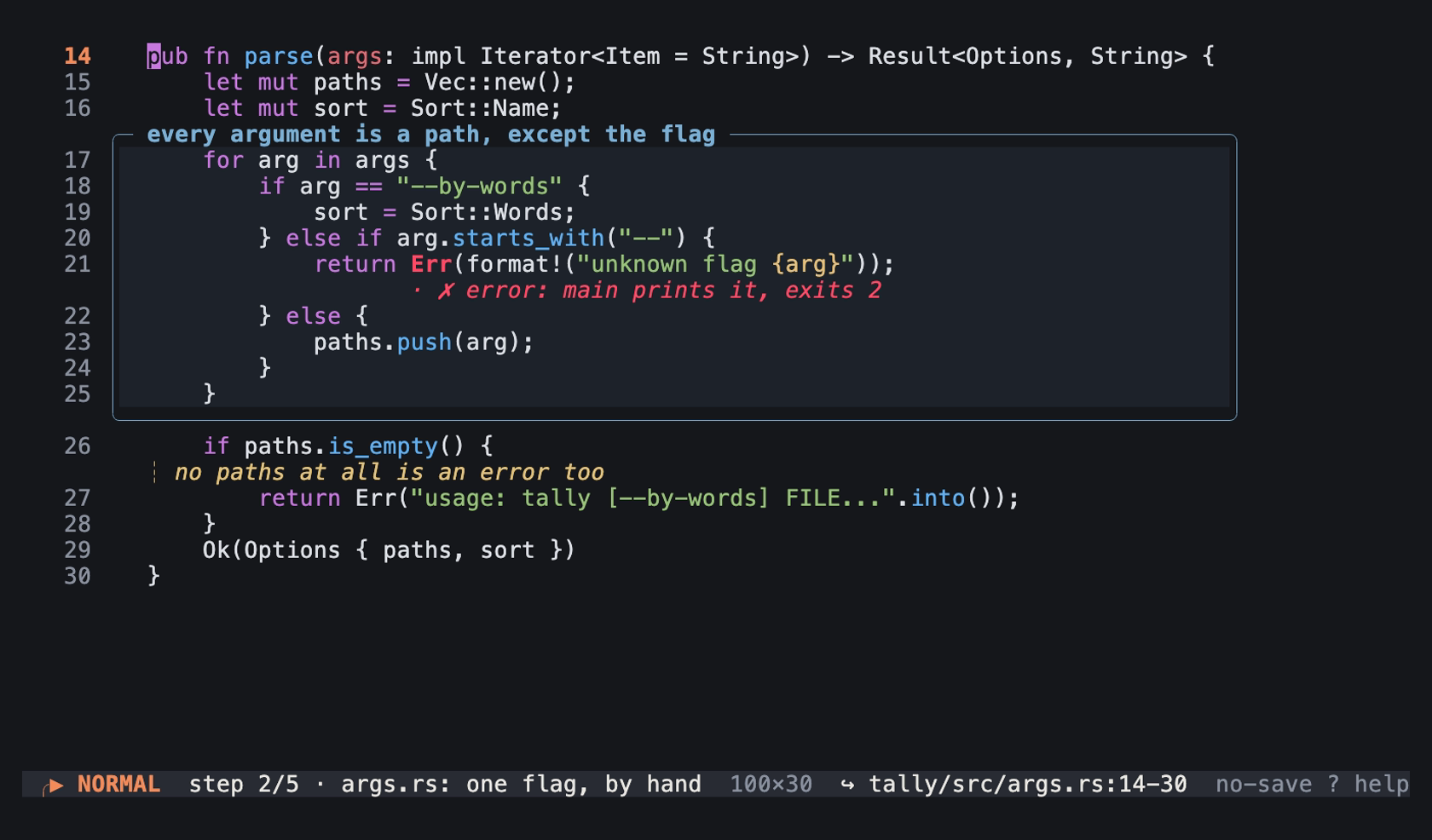
Step 2 of examples/tally-tour.tiza in normal mode, with its title and its code.link: an image of the TUI in a real terminal of 100 columns and 30 rows, with the Menlo font.
Messages
| Message | When |
|---|---|
cannot paste while moves are applied (step N): go back to step 0 first | You paste at a step where a move is applied. |
cannot show another file's code while moves are applied (step N): go back to step 0 first | :ref or :link names a file with other code while a move is applied. |
FILE is shown by a code.link at step N, with annotations of its own: delete that link first to reference it | :ref or :link names a file that a code.link move shows. |
tiza: step N does not exist (the document has steps 0 to M); showing step M | tiza render --step N names a step after the last step, for an export that does not record the steps. |
tiza: no Tiza instance is listening on PATH (open `tiza <file>` or pass --socket/--session) | tiza next, tiza prev or tiza goto finds no instance. |
no step is named "ID" (named steps: IDS) | A goto command names an unknown id. |
no step is named "ID": the document has no named steps | A goto command names an id, and the document has no named steps. |
step N is beyond the last step (M) | A goto command names a step number after the last step. |
step "ID" names step N, beyond the last step (M) | A goto command names an id whose entry is after the last step. |
steps: entry «ID» names step N, beyond the last step (M); kept, not used | An entry names a step after the last step. |
steps: entry «ID» (step N) has unknown key `KEY`; kept in the file, not used (known: step, id, title, auto_advance_ms) | An entry has a key that Tiza does not know. |
steps: two entries name step N (one entry per step) | Two entries name the same step. |
steps: the entry of step N has an empty `id` (leave it out instead) | An id is empty. |
steps: id "ID" is used twice (ids must be unique) | Two entries have the same id. |
steps: id "ID" (step N) has blanks; use one word (`shared-borrow`) | An id has more than one word. |
steps: id "ID" (step N) is all digits; a number means a step number, so ids need a letter | An id is all digits. |
steps: id "ID" (step N) starts with `-`, which `tiza goto` would read as an option; start it with a letter or a digit | An id starts with -. |
steps: `auto_advance_ms` of step N is 0; give at least 1 ms or leave it out | An auto_advance_ms is 0. |
WHAT: step N is past the last step a document can have (999) | An annotation, a move or an entry names a step after 999. |
The message no Tiza instance is listening on … ends with the error of the system. tiza goto writes tiza: before each goto message. It ends a message about an unknown id with (not_found). It ends a message about a step after the last step with (invalid_argument). For example:
tiza: no step is named "x" (named steps: a) (not_found)The other messages of tiza are in Messages.
Special cases
A paste while a move is applied
Tiza refuses a paste while a move is applied. Go back to step 0 first. The message is cannot paste while moves are applied (step N): go back to step 0 first.
At step 0, a paste applies the moves again on the pasted code. Tiza anchors each annotation again on the code at its own step. Thus an arrow at step 3 stays on a line that a move typed.
Follow mode with moves
A save in the editor waits while a code.patch is applied. A patch is applied when its at_step is the current step or before it. The change loads at the step before the first patch, or at an earlier step. Thus a document without patches never waits. See Moves in Follow the editor.
How it works
A document depends only on its step. Tiza applies each move up to the current step, in step order, on the code of step 0. Going back applies fewer moves. The document and :embed always keep the code of step 0.
A code.patch move gives the new place of each line. Tiza moves the annotations with the lines. Tiza does not search for text.