
Guides
Use the mouse
Use this page to select code with the mouse while you explain it.
The mouse is for live explanations in normal mode, where the status bar shows what you select.
Tiza is a terminal tool that draws annotations on code. To install it, see Install.
Turn the mouse on
The mouse is off by default. While mouse capture is on, a drag selects code in Tiza, not text in the terminal. To copy text, see Copy text from the terminal.
| Command | What it does |
|---|---|
tiza FILE --mouse | Starts Tiza with mouse capture on. |
mouse = true in [defaults] of the config file | Starts each session with mouse capture on. |
:mouse on | Turns mouse capture on. |
:mouse off | Turns mouse capture off. |
:mouse | Shows the state of mouse capture. |
Select with the mouse
- Drag over the code with the left button. When you release the button, the selection stays open.
- Read the status bar. It shows the main keys for the selection.
- Press a key. See Selection keys.
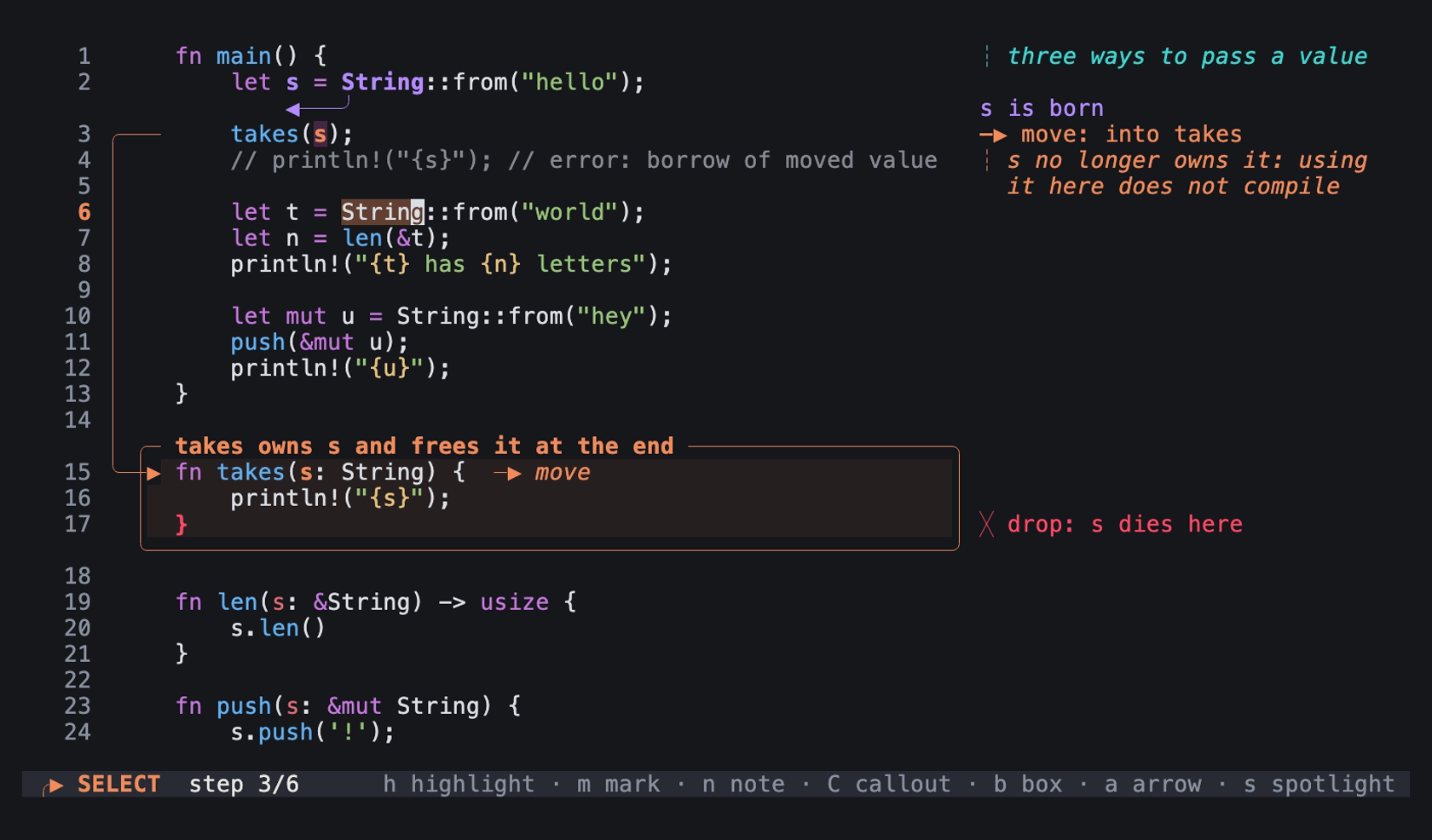
A selection of String on line 6, at step 3 of examples/ownership.rs.tiza. A drag over String with the left button makes this selection. v and then e make the same selection. This is an image of the TUI in a real terminal of 100 columns and 30 rows, with the Menlo font.
To cancel the selection, press Esc or Ctrl-C, or click the code. Esc and Ctrl-C also cancel an arrow that you started.
To draw an arrow:
- Drag over text on one line, and press
a. - Drag over the text of the second end, on one line, and press
aagain.
A click without a drag does not select. The shortest drag selects two characters. An arrow end is the first character of the selection.
To cancel an arrow before its second end, press Ctrl-C. When the help, the list, the review or the command line is open, the first Ctrl-C closes it. Then press Ctrl-C again.
- When no panel, command line, selection or arrow is open,
Ctrl-Cquits Tiza. It also quits in presentation mode, with the live pointer on and with an annotation selected withTab. - While no selection is open,
Escdoes other jobs first. It turns off the live pointer, leaves presentation mode or clears an annotation selected withTab.
Copy text from the terminal
While mouse capture is on, many terminals let you select text with a modifier key. Tiza has not tested these keys:
| Terminal | Key to hold while you drag |
|---|---|
| Ghostty, WezTerm and most Linux terminals | Usually Shift. |
| iTerm2 | Usually Option. |
For other terminals, read the documentation of the terminal. You can also type :mouse off. Then copy the text. Then type :mouse on.
Mouse actions
| Action | Result |
|---|---|
| Left click | Moves the cursor to the line and the column that you click. |
| Drag on one line | Selects the text that you drag over. |
| Drag over two or more lines | Selects those lines. |
| Wheel | Moves the cursor three lines, up or down. |
The right and the middle button do nothing. During an enter effect, a click or a drag of any button ends the effect and does nothing else, as a key does. The wheel lets the effect play. With the live pointer on, a notch of the wheel ends the effect and does nothing else, as a key does.
Selection keys
When you release the button, the status bar shows the main keys for the selection:
| Status bar | Selection |
|---|---|
selected: h highlight · m mark · a arrow · n note · b box (Esc) | Text on one line |
lines A-B selected: b box · s spotlight · C callout · n note · h focus (Esc) | Two or more lines |
The keys do these actions:
| Key | On text on one line | On two or more lines |
|---|---|---|
h | Adds a highlight. | Sets the focus on the lines. |
m | Opens :mark for the text. | Opens :mark, which does not use the lines. |
a | Sets one end of an arrow. | Does nothing. |
n | Opens :note for the line. | Opens :note for the first line. |
b | Opens :box for the line. | Opens :box for the lines. |
s | Adds a spotlight on the line. | Adds a spotlight on the lines. |
C | Opens :callout for the line. | Opens :callout for the lines. |
A mark is always on one line. After m on two or more lines, type the kind, then the text to mark as L:text. L is the line number. L: alone marks the whole line.
Messages
| Message | When |
|---|---|
mouse on: click moves, drag selects, wheel scrolls (Shift/Option-drag keeps the terminal's own selection) | :mouse on turned mouse capture on. |
mouse on | :mouse shows that mouse capture is on. |
mouse off | :mouse off turned mouse capture off, or :mouse shows that it is off. |
usage: :mouse [on|off] | :mouse got an argument other than on or off. |
ID: highlight (:label ID text to name it) | h added a highlight on the selected text. |
focus A-B (Esc clears) | h set the focus on the selected lines. |
ID: spotlight at step N | s added a spotlight. |
arrow: now select the target and press a (Esc cancels) | a set the first end of an arrow. |
ID: arrow (:label ID text to name it) | a set the second end and added the arrow. |
arrow cancelled | Esc or Ctrl-C canceled the arrow while no selection was open. |
- A message about a new annotation can end with a step hint, for example
(step N, press n). The hint shows when the annotation goes to a later step than the step on the screen. - When
EscorCtrl-Ccancels a selection, Tiza also cancels the arrow. Tiza shows no message.
Special cases
- A click on a label or on the border of a box moves the cursor to the nearest code line above it. For the top border of a box, that is the line before the box. With no code line above, the click does nothing.
- A click on the line numbers moves the cursor to column 0 of that line.
- A click after the end of a line moves the cursor to the last character of the line. On an empty line, it moves the cursor to column 0. Notes and callouts can be in that space.
- A click outside the area of the code and the line numbers does nothing. Examples are the status bar, the padding and the rows below the last line.
- The wheel stops at the first line and at the last line.
- While the help, the list or the review is open, Tiza ignores the mouse. Mouse capture stays on.
- While the command line is open, a click does nothing.
- In Zed, Cmd+click still opens links while mouse capture is on.
- In tmux, the
set -g mousesetting and mouse capture in Tiza decide together which program gets the mouse. See Terminal support.
Presentation mode
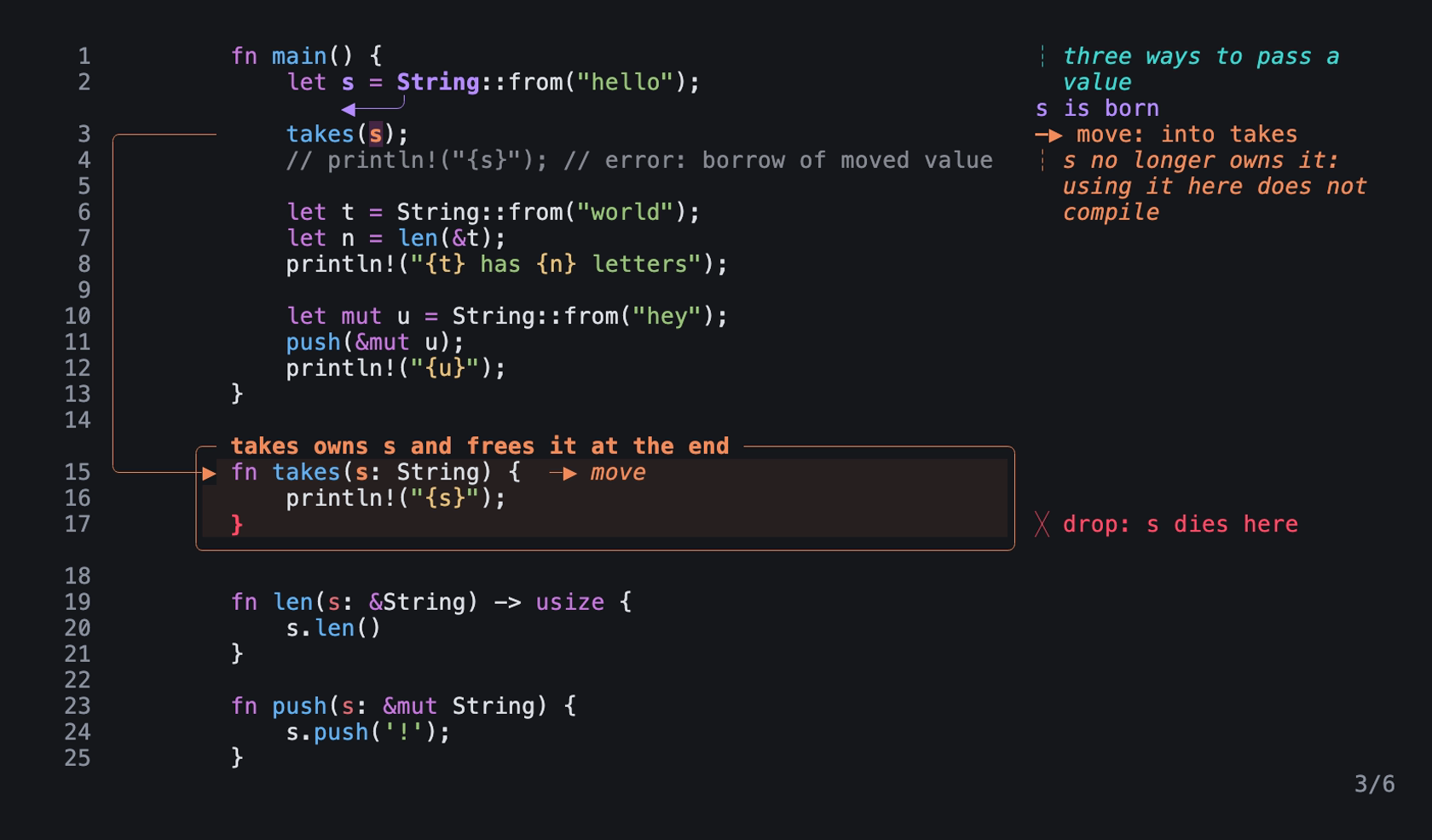
Step 3 of examples/ownership.rs.tiza in presentation mode: an image of the TUI in a real terminal of 100 columns and 30 rows, with the Menlo font.
Presentation mode (P) ignores each click and drag. The wheel moves the view three rows for each notch, and the hidden cursor stays in the view. With the live pointer on, the wheel moves the pointer, and while an effect plays, a notch only ends the effect, as a key does. With the live pointer off, the wheel moves the view, and the effect continues. Mouse capture stays on, so the terminal does not select text either. Presentation mode hides the cursor and the selection. Tab goes only through the annotations in the view and selects none of them. To annotate with the mouse, leave presentation mode first. The mouse then works without :mouse on.
How it works
Tiza asks the terminal to send mouse events only while mouse capture is on. :mouse on and :mouse off change this immediately. When Tiza quits, it turns mouse capture off. After an internal error, Tiza also turns mouse capture off. Then the terminal selects text again.